
主题
How to Authorize a Device
Scope: Device authorization in cloud management, including devices used for USB playback. Documentation checked: 2026-10-24.
The workflow is find the Player → select the appropriate device license → confirm assignment → check that the Player has received it.
For USB-only playback, go directly to Authorizing a Player for USB Playback. For license differences, see Device Authorization.
These screenshots show the current Android Admin app. Red boxes highlight controls; click an image to enlarge it. License codes and unrelated device information are blurred. Use licenses belonging to your own account.
1. Find the target device
- Open Admin and sign in to the account managing the Player.
- In Home, select online management and open My Device.
- Check the device name and system information. Keep the Player online so it can receive the authorization result promptly.
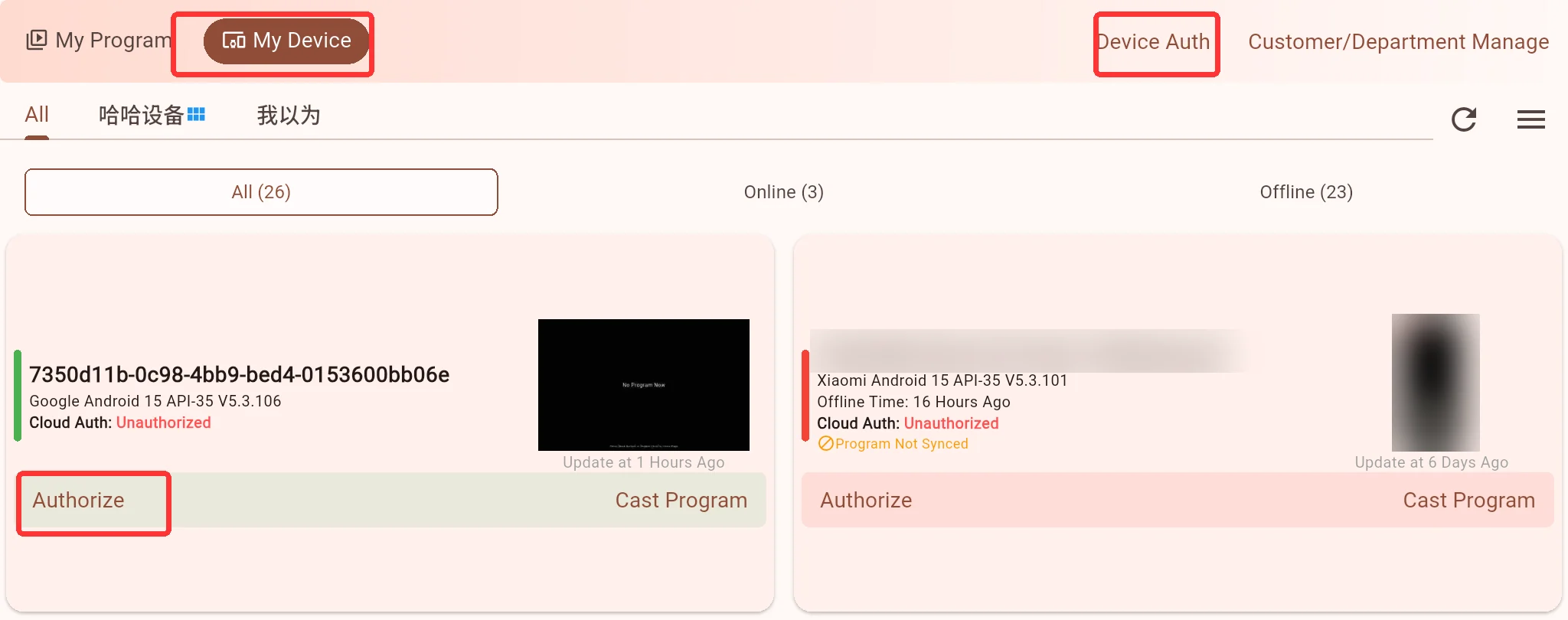
If the Player is missing, bind it first. You do not need to cast a program before authorizing it. A Player with an empty playlist can be bound and authorized first.
The two highlighted entries serve different purposes:
- Device Auth, at the top right, opens your account's license inventory.
- Authorize, on a device card, assigns a license to that particular device. This is the entry used below.
2. Prepare an available license
Open Device Auth to view licenses by type. Choose an online device license for ordinary online programs, or a Local Device Auth license for local playback such as USB, folders, LAN direct connection or private deployment.
Start with the Valid tab. All includes historical records and does not mean every entry can be reused. If no suitable license is available, contact your service provider or account administrator.
If you received an activation code, redeem it to your account first
In Admin, open Me → Activate Auth. Paste the activation code provided by your supplier, or use the scanner icon beside the input. Check the details, then tap Activate Auth and follow the prompts.

Redeeming an activation code does not automatically authorize a device. Return to My Device and assign the resulting device license to the intended Player as described below. Skip this step if the account already has an available license.
3. Assign a license to the device
Open Authorize
Tap Authorize on the target device card. Alternatively, tap the device name, then tap Authorize in the Auth Info section. Both open the same selection flow.

Choose the type and select one license
For ordinary online programs: open the online device license tab, check the duration and status, then select an available license. A check mark appears at the top right of the card. Tap Select at the bottom right to submit.
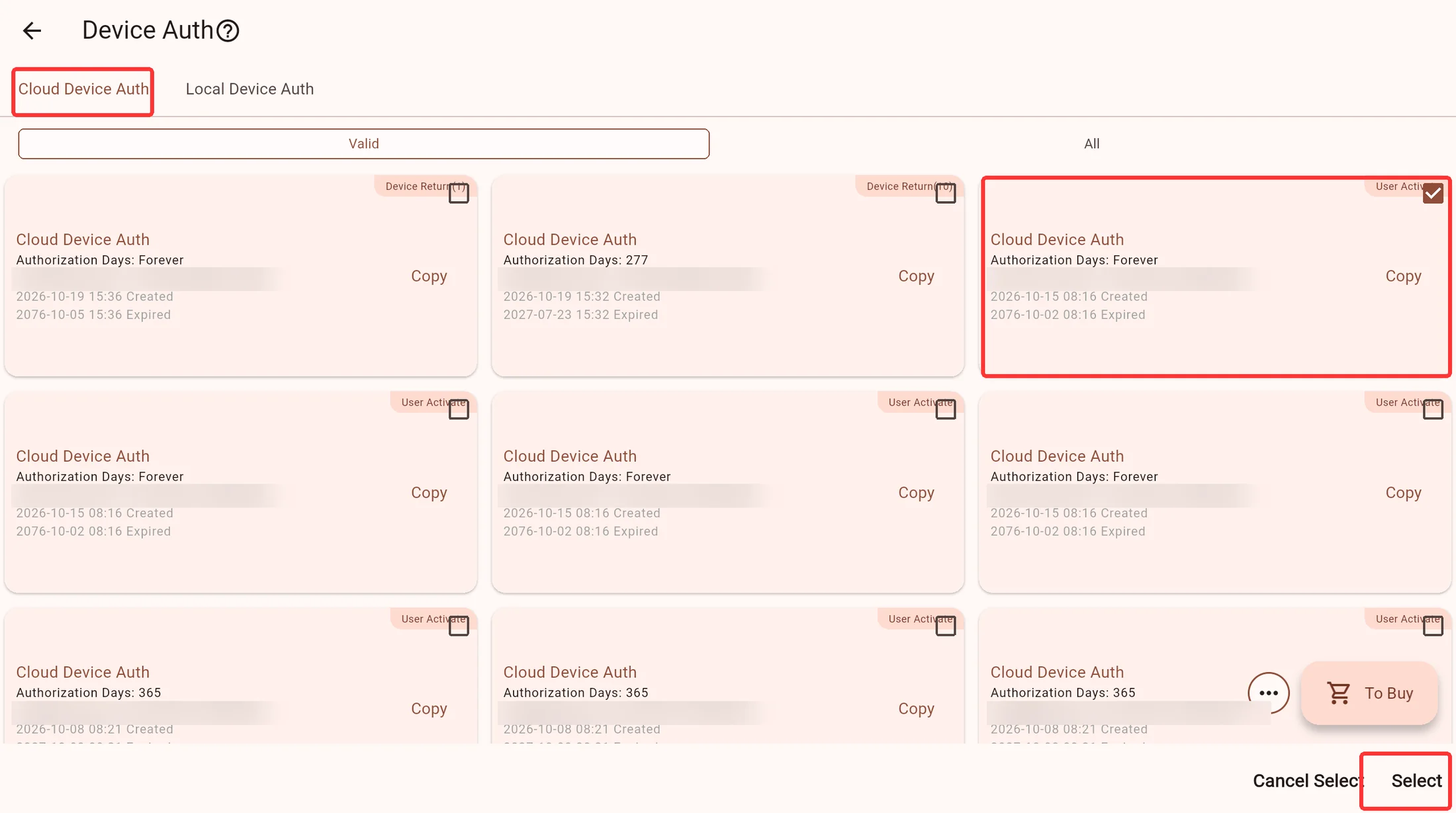
For local playback: switch to Local Device Auth, select an available license, then tap Select at the bottom right.
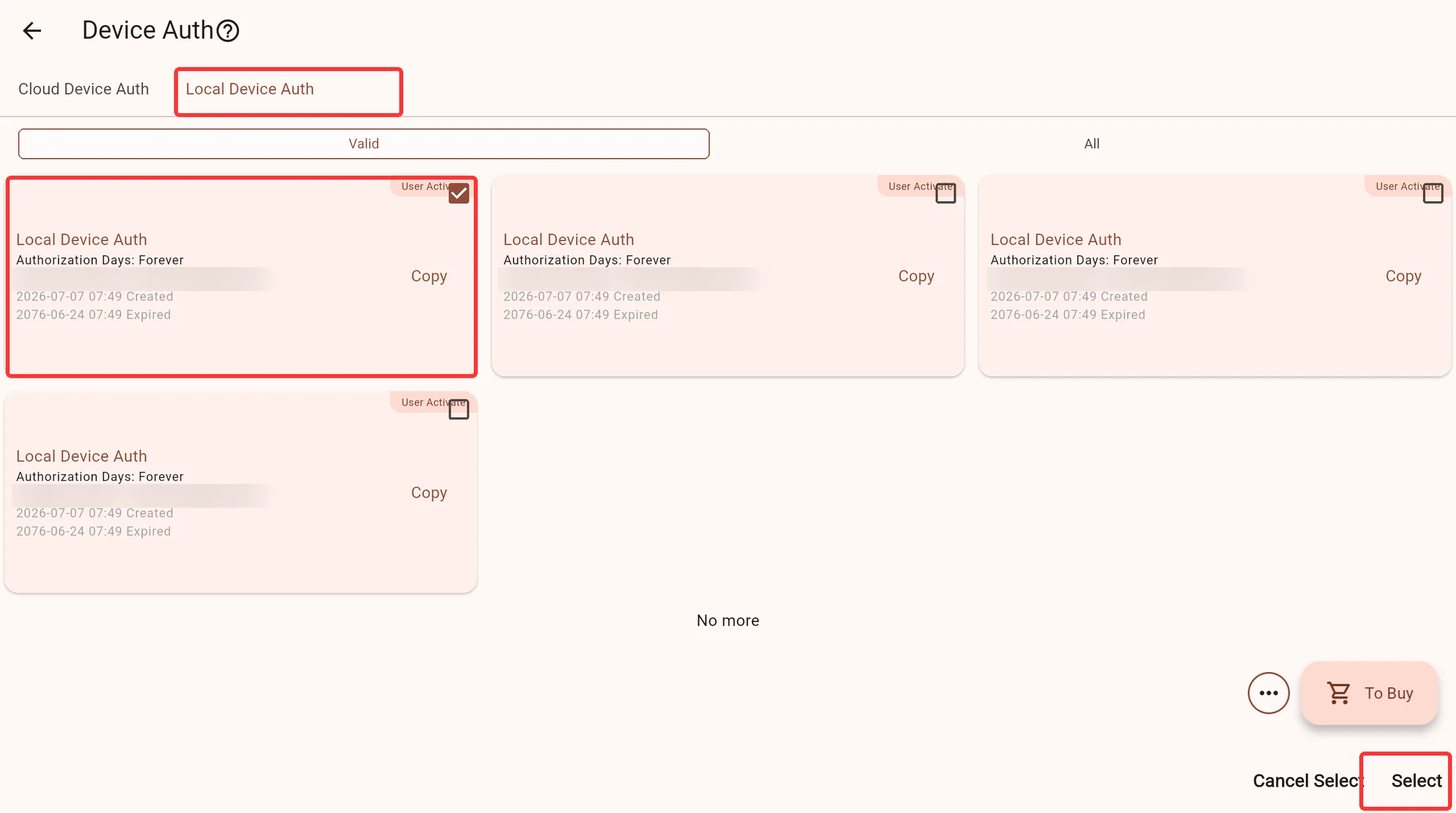
Check the device and license type before confirming
Checking a card only selects it. Tapping Select submits the authorization. Press Back to leave without submitting if you are unsure. Copy only copies license information; it does not authorize a device.
A local license is tied to the device and cannot be treated as an unused license for another device afterwards. Check the target before submitting; do not spend a local license just to test the process.
Check the result
After successful submission, return to the device list or details and check the license type and validity period. A success message alone, or the Created/Expired dates on a license card, is not enough to confirm that the Player is ready.
This example comes from another device that already has a license. It illustrates where to read the result; it is not the submission result for the emulator shown above:

- An online or local license with a future expiration indicates that the corresponding license is valid.
- Unauthorized or an expired date means further checks are needed.
- Free Authorization indicates the account's free trial capability, rather than an assigned paid device license.
Keep the Player online while it receives the refresh. A restart is normally unnecessary. If its status has not changed, try update → Sync Now on the Player home screen and check again. Before going offline, confirm a valid license on the Player itself.
4. Authorizing a Player for USB Playback
The license belongs to the playback device, not the USB drive or each program. While that device has a valid local license, changing USB drives or replacing images and videos does not require authorizing each drive again.
Option A: The Player can connect temporarily (recommended)
A device normally used only for USB playback can connect temporarily for authorization, then return to offline use:
- Connect the TV, signage display or set-top box to the Internet, for example through site WiFi or a phone hotspot.
- Find the device dynamic code in the online casting section of the Player home screen. Use Admin to bind the Player to your account. No media upload or online program is required.
- In Admin's online management area, open My Device → target device → Authorize.
- Select Local Device Auth, check the intended license, then tap Select. Choose by the playback use case: entering through online management does not require choosing an online license.
- Wait for the Player to receive the license. Check the license type and validity in the local casting section on the left of the TV's home screen. Sync manually if needed.
- Once the local license is valid on the Player, disconnect the network and follow USB Casting.
Online management is the way to complete this initial assignment. Playback of local files from the USB drive does not require a continuous Internet connection afterwards. If an existing valid online license includes local playback, do not buy another local license unnecessarily. See Device Authorization for local-feature restrictions on returned licenses.
Option B: The Player cannot access the Internet but can join a LAN
Use an Internet-connected phone or computer running Admin, signed in to the account owning the license. Connect to the Player through LAN Direct Connection or an existing Private Deployment. In that source's device list, open Authorize, choose a local license and confirm.
The Admin performing the initial exchange still needs access to the authorization service. Offline playback support does not mean the initial authorization needs no network at all. Confirm receipt on the Player before using it for USB playback.
For a device that cannot join even a LAN, or a fully isolated site, contact your supplier to confirm an appropriate authorization procedure. Copying an activation-code or license-code text file onto the media USB drive does not automatically authorize the Player.
Must I bind or authorize again when changing USB drives?
No. Routine USB changes do not require rebinding or reauthorization. Do not clear app data, reset the device key or cancel its license just to switch to USB playback. Those actions are unnecessary and may affect the device identity or saved authorization.
5. Authorizing through an existing LAN environment
For LAN direct connection or private deployment, switch Admin to the source actually managing the Player. Follow My Device → Authorize → Local Device Auth → Select. Check the device and validity period, then confirm receipt on the Player.
If the device is missing, connect it to the intended environment first. License inventory alone is not enough without the target device. Before replacing the host storing the local service, export device JSON containing bindings and licenses and import it on the new service. Do not cancel licenses or unbind devices first. Follow Private service backup and migration.
6. FAQ
Why does the TV remain unauthorized after purchase or redemption?
You may have redeemed a code to the account without assigning a device license. Open Authorize on the intended device and complete assignment. Also check that the license matches the program source and that the Player has received the refresh. Available licenses in an account do not automatically authorize every device.
Why is Local Device Auth available in online management?
The management entry and playback license purpose are separate. An online account can assign a local license for USB and other local programs. A local license does not cover ordinary online programs. See Device Authorization.
What if no license is available or assignment fails?
Check the signed-in account, license type, usage and expiration, and whether Admin can access the authorization service. If a local license reports a device mismatch, do not try another device's license; ask the administrator to verify it.
Does a free trial need manual license selection?
Usually not. Free trials and paid licenses have different capabilities. The selection flow on this page assigns device licenses held by the account. See Device Authorization for the applicable rules.
How do I cancel a license or replace a device?
With a valid license, device details provide a Cancel Authorization entry under Auth Info. Online license returns and replacements have limits. Canceling a local license does not make it an unused license for another device. Read Device Authorization first; cancellation is not a routine refresh or troubleshooting step.