
主题
Text Material
Text material displays text directly inside a program. It is suitable for notices, greetings, price text, scrolling messages, dynamic dates, and device attribute display.
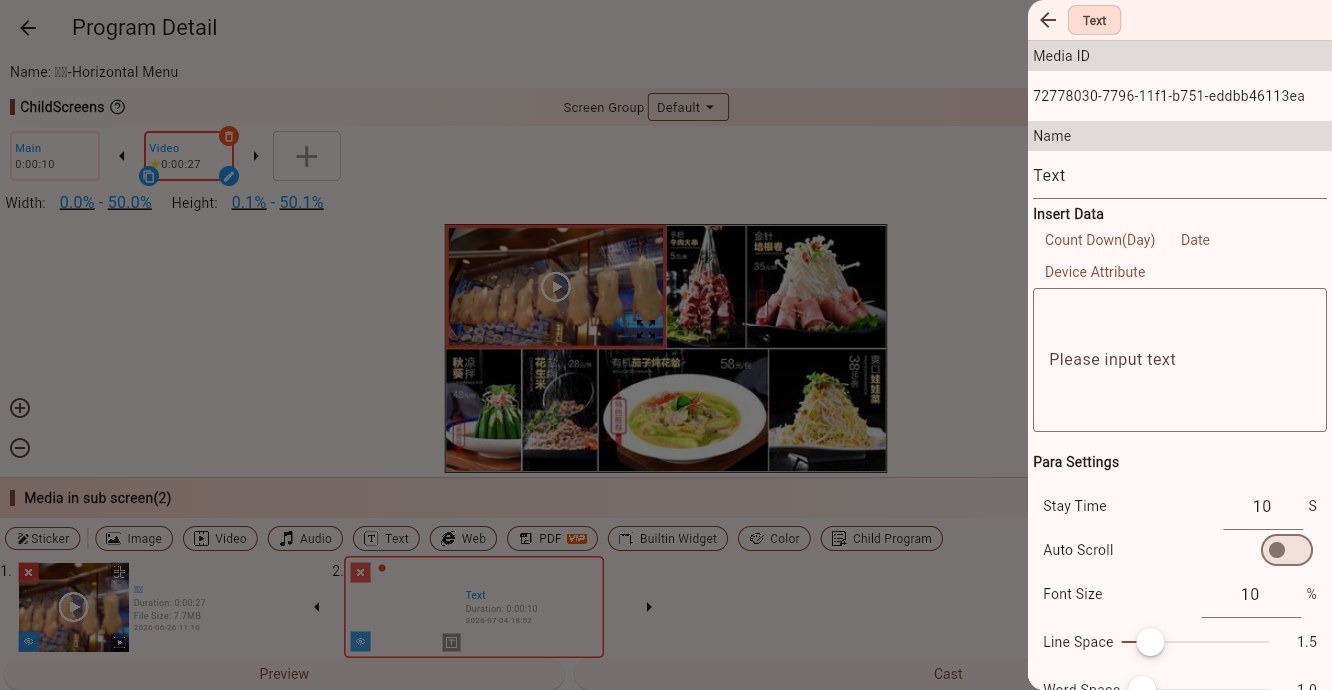
Text Input
Text material does not require a file upload. Enter the text directly in the right-side text box. Multi-line text is supported.
The Insert Data shortcuts above the text box can insert dynamic variables:
- Count Down (Day): inserts a countdown based on a selected date.
- Date: inserts the current date. The Player end renders it based on device time.
- Device Attribute: inserts a device attribute variable, such as device name, store, or department.
Dynamic data is useful for content such as "N days until the event", today's date, or current store name.
Parameters
Stay Time
Controls how long the text material stays on screen.
Auto Scroll
When enabled, the text scrolls automatically. Use it for long notices, scrolling messages, and text lists. When disabled, the text is static.
Scroll Speed
Controls scrolling speed. Use a slower speed for text-heavy content.
Scroll Direction
When auto scroll is enabled, choose the scrolling direction, such as right-to-left, left-to-right, top-to-bottom, or bottom-to-top.
Font Size
Controls text size relative to the child screen. Larger screens and longer viewing distances need larger text.
Line Space / Word Space
Line space controls the distance between lines. Word space controls the distance between characters. Proper spacing improves readability.
Font Color
Controls text color. Use enough contrast between text and background.
Font
Uses the system font by default. You can also choose an uploaded or built-in font. The Player end must be able to download and load that font.
Layout Align
Controls where the text block sits inside the child screen, such as top-left, center, or bottom-right.
Text Align
Controls the alignment inside the text block, such as left, center, or right.
Stroke Width / Stroke Color
Adds a text outline. This is useful when text is placed on top of images or videos.
Bold / Italic
Emphasizes text. The result depends on the selected font.
Tips
Use static text for short notices. Use auto scroll for long notices.
Horizontal scrolling is good for ticker-style messages. Vertical scrolling is better for long paragraphs or lists.
If text is placed on a complex background, use a stroke or place it on top of a color block.
Use device attribute variables when the content should differ by device, store, or department.
Click Events
Text material supports click events. For touch-screen scenarios, clicking a notice can open a detail page or jump to another media item.
For font selection, missing glyphs and offline checks, see Fonts and offline use.