
主题
Configure Publish Relations
Publish relation settings decide where a program is published, how it is added to the target playback list, when it is valid, and how it is scheduled when other programs are also valid.
If you only want one program to play continuously on one device, the defaults are usually enough. Configure this page carefully when you need to:
- Play different programs on the same device at different times.
- Publish multiple programs to one device and rotate them by schedule or priority.
- Display a ticker, notice, badge, or temporary message above the main program.
- Keep multiple devices or a screen group in sync.
- Switch directly to a program when the player receives a remote numeric code.
Enter From Publish
On the program list, click Cast on a program card. The app first asks you to choose a publish target.
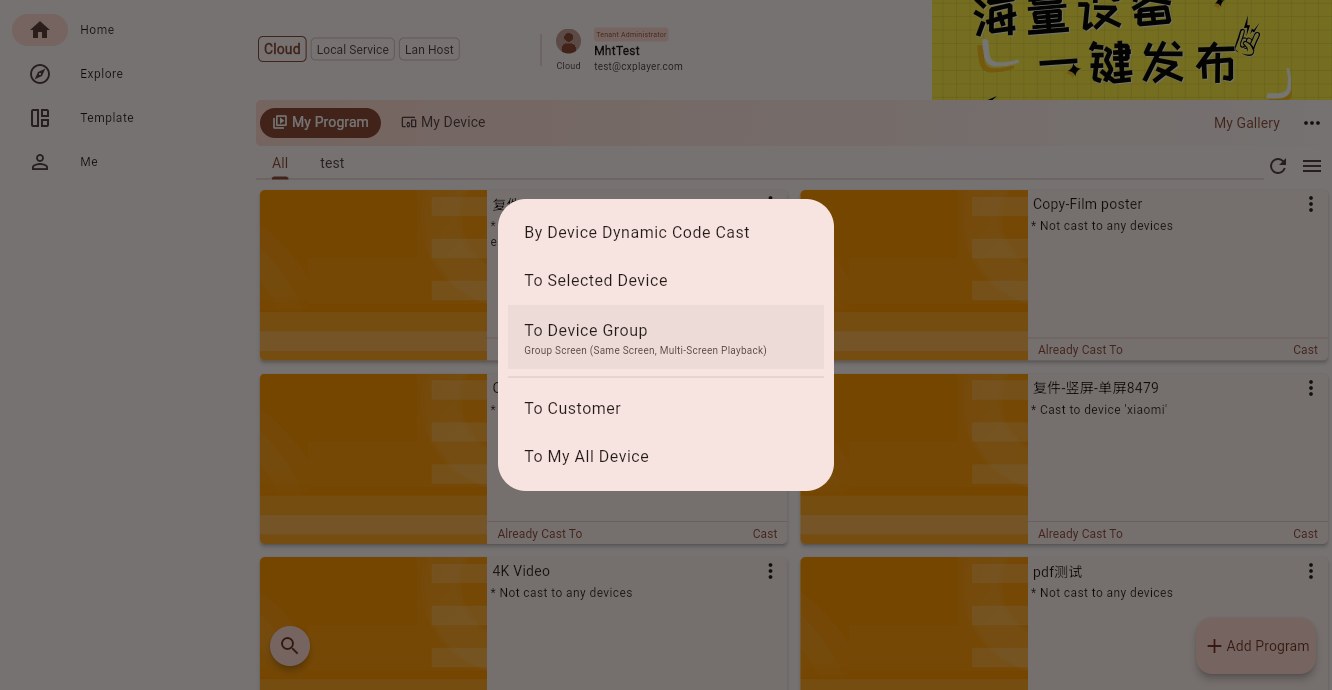
Common target types are:
- Enter device dynamic code: bind a new player by the dynamic code shown on the screen, then publish to it.
- Cast to selected devices: choose one or more bound devices.
- Cast to device group: publish to a device group, such as a store, area, portrait group, landscape group, or combined-screen group.
- Cast to selected customer: publish by customer or department in multi-customer scenarios.
- Cast to all devices: publish to all devices visible to the current account. Use this only when the whole account really should receive the same program.
After selecting the target, the publish settings dialog opens.
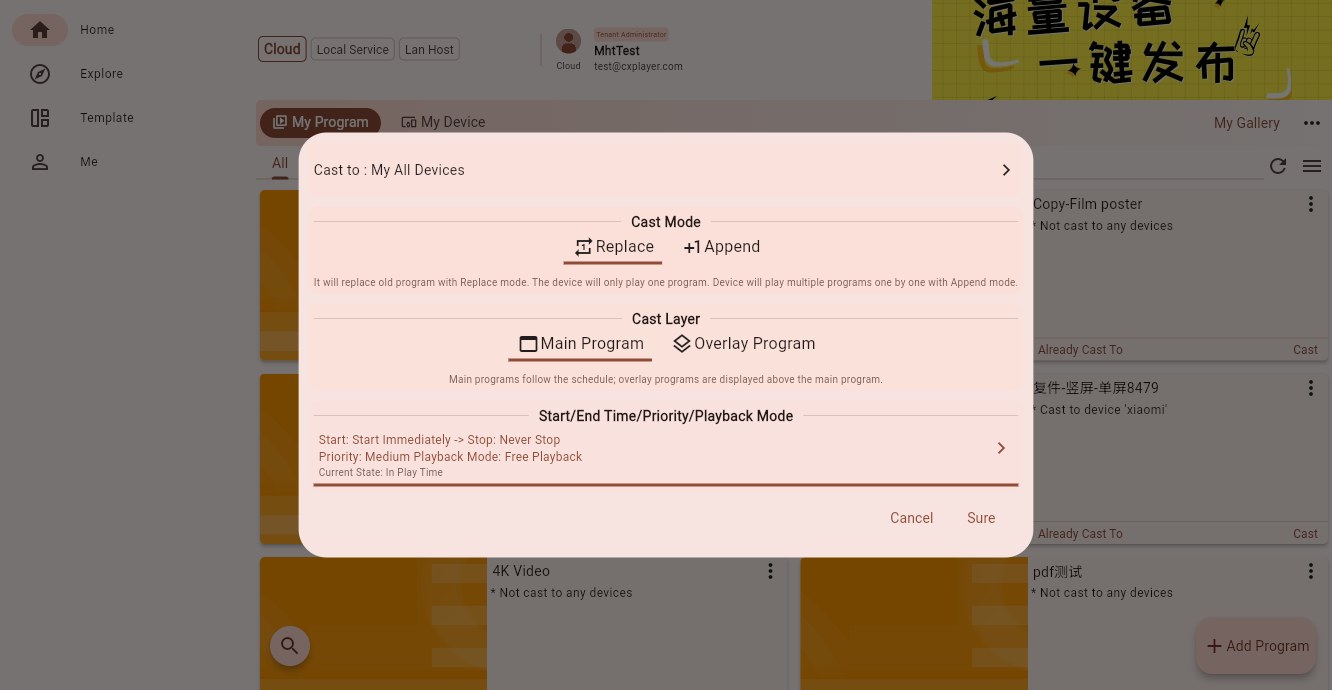
Target Summary
The top row shows the current target, such as Cast to: My All Devices.
If you selected multiple devices, groups, or customers, this row summarizes the target count and type. Click it to review the target list before publishing.
When removing an existing publish relation, this area shows the cancel target summary so you can confirm what will be removed.
Cast Mode
Cast mode decides how the current program is added to the target playback list.
Replace
Replace clears the previous published program list on the target and uses the current program instead. Use it when the target should play only one main program, or when you intentionally want to replace the old content.
Append
Append keeps the existing published programs and adds the current program. Multiple valid programs are then scheduled by time, priority, and playback mode. Use append when one device needs multiple programs, time-based playback, or overlays.
Cast Layer
Cast layer decides whether the program is the main content or an overlay above the main content.
Main Program
The main program is the primary content shown on the player. Ordinary ads, menus, posters, full-screen videos, and dashboards usually use this layer.
Overlay Program
An overlay program is displayed above the main program. It is useful for tickers, temporary notices, campaign badges, weather prompts, and other content that should not require editing the main program. Overlay programs can also have their own schedule and priority.
Detailed Schedule Settings
The Start/End Time/Priority/Playback Mode row is a summary. Click it to open the detailed settings page.
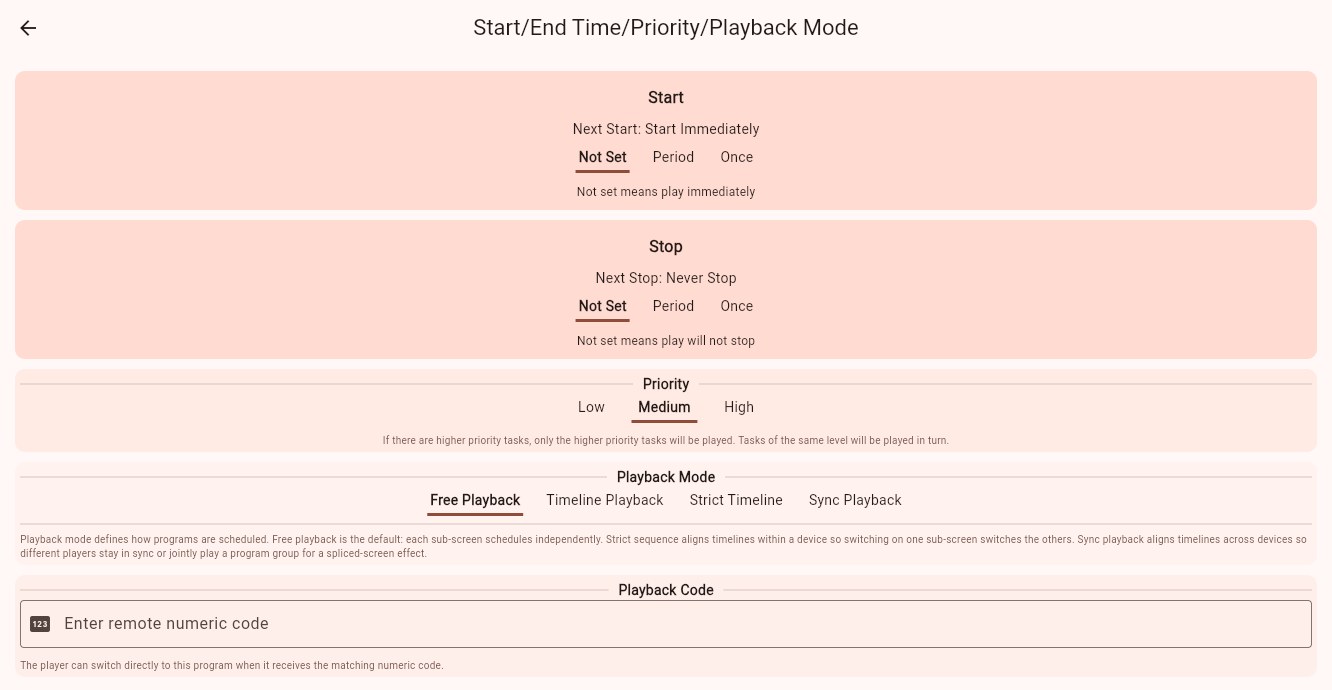
The default settings mean:
- Start: not set, so playback starts immediately.
- Stop: not set, so playback does not stop automatically.
- Priority: Medium.
- Playback Mode: Free Playback.
- Playback Code: empty.
Start And Stop Time
Start controls when the program becomes playable. Stop controls when the program becomes invalid.
Each section supports three setting types:
Not Set
Start not set means play immediately. Stop not set means the program remains valid.
This is the normal default for long-running content.
Period
Period is used for repeating schedules: every day, every week, every month, or every year.
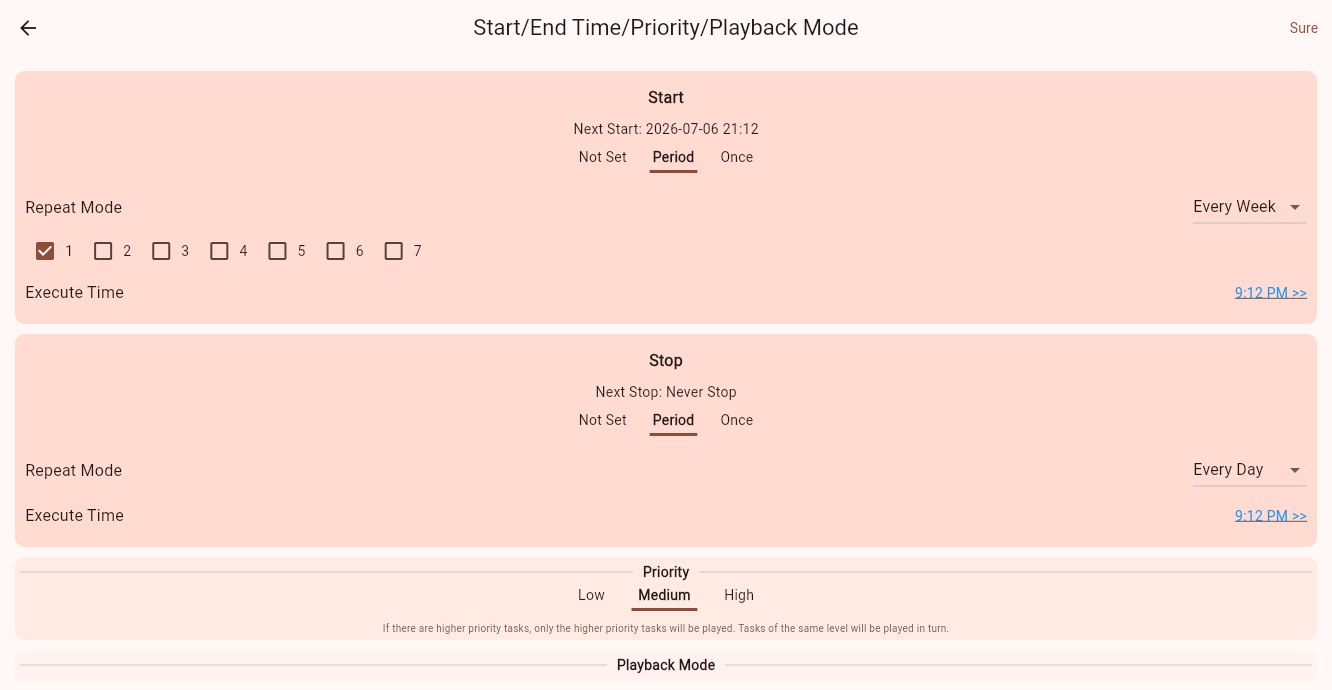
Period mode supports:
- Every Day: start or stop at a fixed time every day.
- Every Week: select numbers 1 to 7 for weekdays, then set the execution time.
- Every Month: select dates 1 to 31.
- Every Year: choose a date and execution time.
For example, a restaurant can start the breakfast menu at 06:00 and stop it at 10:30 every day, then start the lunch menu at 10:30 and stop it at 14:00.
Once
Once is for campaigns or temporary notices that should run only once. Select a specific date and time for start or stop.
Use it for promotions, meetings, holiday posters, or any content that appears for one specific time range.
Priority
Priority resolves conflicts when multiple programs are valid at the same time.
Available levels are:
- Low
- Medium
- High
If a higher-priority program is valid, the player only plays higher-priority programs. Multiple programs at the same priority rotate in turn.
Typical usage:
- Use Medium for normal long-running programs.
- Use High for temporary notices or urgent announcements.
- Use Low for backup or less important content.
Playback Mode
Playback mode controls how the program timeline is scheduled inside the program and across devices.
Free Playback
The default mode. Sub-screens play independently. This works for most ordinary programs.
Timeline Playback
The program follows media durations on a timeline, so playback advances in a more stable sequence. Use it when the program should keep a fixed order and duration.
Strict Timeline
Sub-screens inside the same program share the same timeline origin, so they switch together. Use it when multiple sub-screens need aligned switching.
Sync Playback
Sync playback aligns timelines across multiple devices, or lets a combined-screen group play one program group together. When publishing to a combined-screen device group, the app may select Sync Playback by default.
Sync playback expands additional settings:
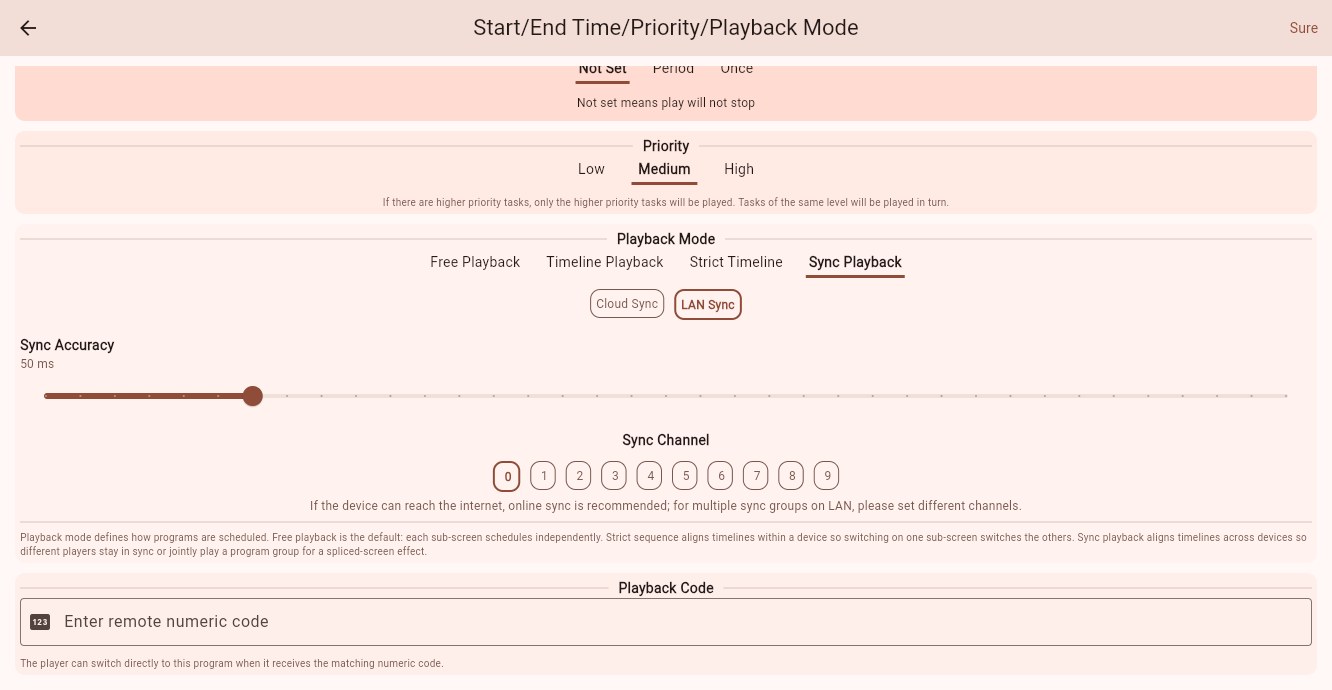
Available options are:
- Cloud Sync: recommended when devices can access the internet.
- LAN Sync: used when devices synchronize inside the same local network.
- Sync Accuracy: adjustable from 20ms to 200ms, default 50ms.
- Sync Channel: LAN sync supports channels 0 to 9. If multiple LAN sync groups exist in the same network, use different channels.
Playback Code
Playback code accepts digits only. When the player receives the matching remote numeric code, it can switch directly to this program.
This is useful for showrooms, meeting rooms, presentations, or store staff who need to switch content quickly from a remote control.
Leave it empty if you do not need remote numeric switching.
Edit Existing Publish Relations
After a program has been published, you can still edit its relation settings from the device or relation list.
Common operations are:
- Edit publish: update start/stop time, priority, playback mode, playback code, and related settings.
- Cancel cast: remove the publish relation between the program and the target.
- Check current state: relation cards show whether the program is in play time, waiting, expired, or invalid.
Before canceling a cast, confirm the target scope. Removing a relation from a device group, customer, or all devices affects more than one device.
What Counts As Success
The settings are submitted only after you click Sure in the publish dialog. After submission, the player refreshes its playback tasks using the new relation settings.
You can verify it by checking that:
- The device automatically plays the program during the configured time range.
- Programs with the same priority rotate in order.
- A higher-priority program suppresses lower-priority programs while it is valid.
- Overlay programs appear above the main program.
- Sync playback devices switch content at the same rhythm.
If the device does not change immediately, wait for the player to refresh its playback tasks, or trigger a program update from device management.
For daily menus, temporary announcements and automatic restoration, see Scheduling examples.