
主题
Device Overview
The device management page is used to manage Player devices that have already been connected to the system. After a device is bound, it appears in the "My Device" list. Publishing, authorization, grouping, and status troubleshooting usually start from this page.
Once the number of devices grows, this page becomes the daily maintenance entry. You usually use it to:
- Check whether devices are online or offline, and when they were last updated
- Confirm whether devices are bound to the current account
- View the device model, system version, app version, and current program thumbnail
- Authorize devices or check whether cloud authorization is about to expire
- Cast a program directly to one device
- Manage devices by store, area, customer, or department
- Unbind, transfer, or troubleshoot abnormal devices
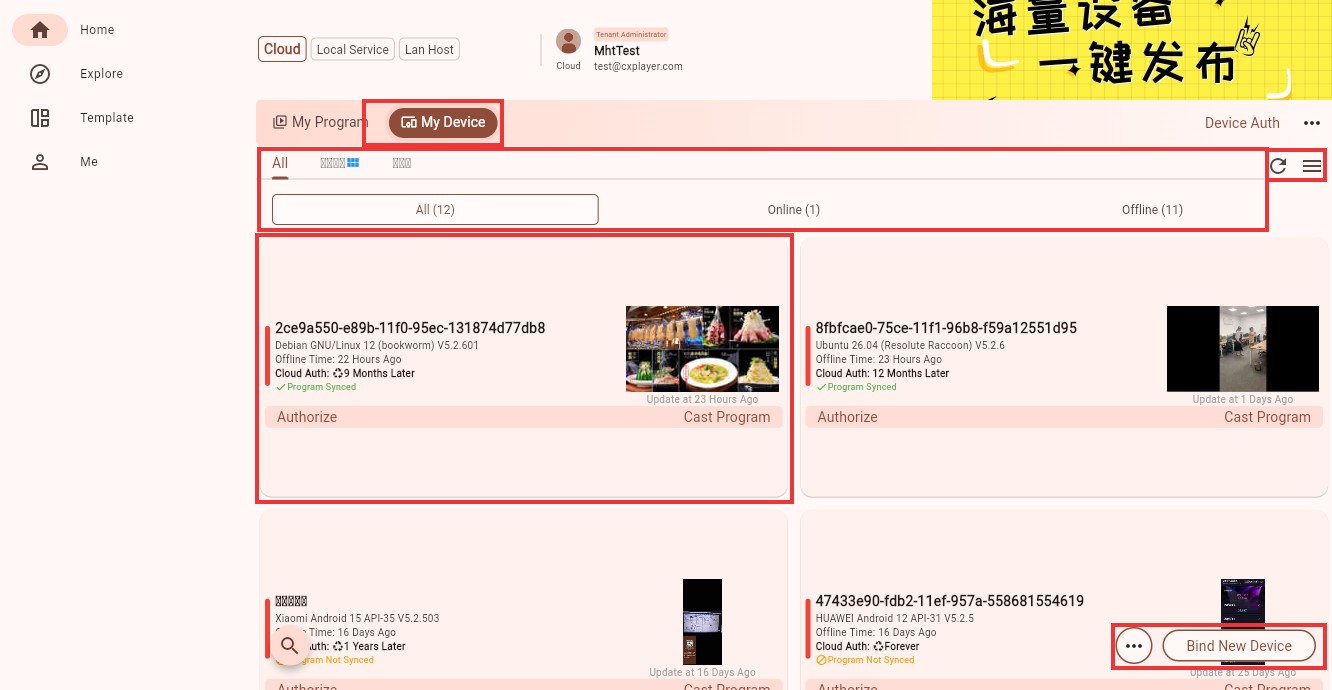 Device management page
What to Check on This Page
The device management page usually contains these areas:
- "My Device": shows the devices bound to the current account
- Group tabs: filter devices by store, area, department, or custom device group
- Online status: quickly filter all, online, or offline devices
- Device cards: show the device name, system information, authorization status, program sync state, and current program thumbnail
- Common actions: refresh the list, switch the list view, bind a new device, authorize a device, and cast a program
If you use cloud management, check devices under "Cloud" first. If you use local service or a specified host, switch to the corresponding management mode before checking the device list.
How to Read a Device Card
Each device is shown as a card. The left side usually shows the device name or device ID, the middle shows the system, version, online state, and authorization state, and the right side shows the current program thumbnail and update time.
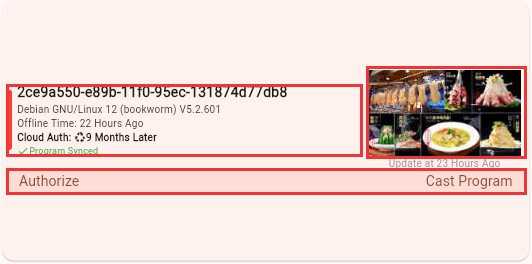 Device card information
Common fields in a device card mean:
- Device name or ID: used to distinguish Player devices. You can modify it in device settings or the admin end.
- System and version: helps confirm whether the device system and Player app version meet your requirements.
- Offline time: the time since the device was last online. Check this first when troubleshooting.
- Cloud authorization: shows the cloud authorization state and remaining time.
- Program sync: indicates whether the latest program has been synced to the device.
- Current program thumbnail: helps you quickly confirm what the device is playing or has recently synced.
Common Actions
Bind a New Device
When a new Player device is connected to the current account for the first time, bind it first. Click "Bind New Device" in the lower-right corner and enter the device dynamic code shown on the Player main screen. See Bind a Device for the complete flow.
Authorize a Device
If a device is not authorized, the device card shows the "Authorize" entry. After authorization, the device can use cloud capabilities according to the selected authorization type. See Authorize a Device for the detailed flow.
Cast a Program
Click "Cast Program" on a device card to cast a program directly to that device. This is the most direct method when you only have a few devices. When you manage many devices, group them first and then cast by group.
Refresh Device Status
After a device comes online, syncs a program, or receives authorization, the page may not update immediately. Click the refresh button in the upper-right corner to load the latest status.
Update the Player Software
We recommend updating at the TV with its remote control. See Update the Player App for the steps. “Remote/Settings/Screenshot → RemoteSet → Check Update” in device details is an optional advanced operation, not recommended for routine updates. The device must be online with remote operations available, and someone at the TV must still confirm the update and system installation. “Update Program” synchronizes program content and does not update the software.
When You Should Pay Attention to Device Management
The most common situations are:
- You just bound a device and want to confirm that it appears under the current account
- You just cast a program and want to confirm that the device has synced it
- A device stops playing and you want to confirm whether it is online
- Stores, areas, or departments have grown and you want to organize devices into groups
- Device authorization is about to expire and needs renewal or replacement
- A device needs to be managed by another account and must be unbound or transferred
What a Beginner Should Remember First
- For a new device, bind it first, then cast programmes to it
- "Online/Offline" and "Program Sync" are the first two states to check when troubleshooting
- Once the number of devices grows, create groups early to make publishing and troubleshooting faster
- If you are still unsure which authorization type to choose, continue with Device Authorization