
主题
Change Player Orientation
Applies to Android Player apps and program orientation settings in Admin. Reviewed: 2026-10-27.
Use this guide when a TV or signage display is installed vertically, content plays sideways, or switching to portrait leaves the picture in a small area in the center. The screenshots show the current Android interfaces. Select an image to enlarge it.
Does portrait mode shrink the picture to a small area in the center?
Some Android TVs do not handle an app's portrait request correctly and reduce the available display area. In this case, turn off “Call System Hor/Por Switch” in the program, then use the Player's built-in 90° or 270° rotation for the vertically installed screen.
1. Understand the Two Settings
| Location | What it changes | When to use it |
|---|---|---|
| Admin → program editor → Orientation/Ratio | This program's landscape or portrait canvas, system orientation request and layout ratio | Set this when creating or editing a program |
| Player home screen → Screen Orientation | Rotation of playback on this Player | Use when system switching does not work correctly, or to match the installation |
Match the program orientation to the physical installation. For example, a vertically installed TV normally uses a portrait program. Whether to request system switching and how much to rotate playback depends on the actual device.
2. Set the Program Orientation in Admin
Open the Screen Orientation Setting Dialog
- In Admin, open My Program and edit the required program.
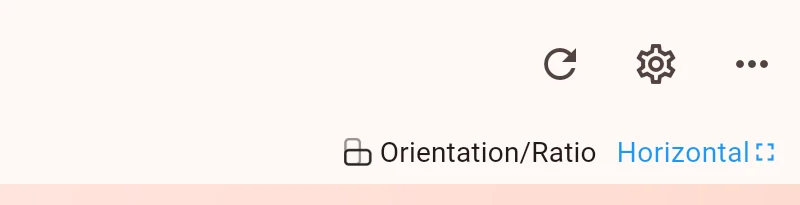
- At the top of the editor, select the Horizontal or Vertical text beside “Orientation/Ratio”.
- Choose the orientation, system-switch option and ratio, then select Sure.
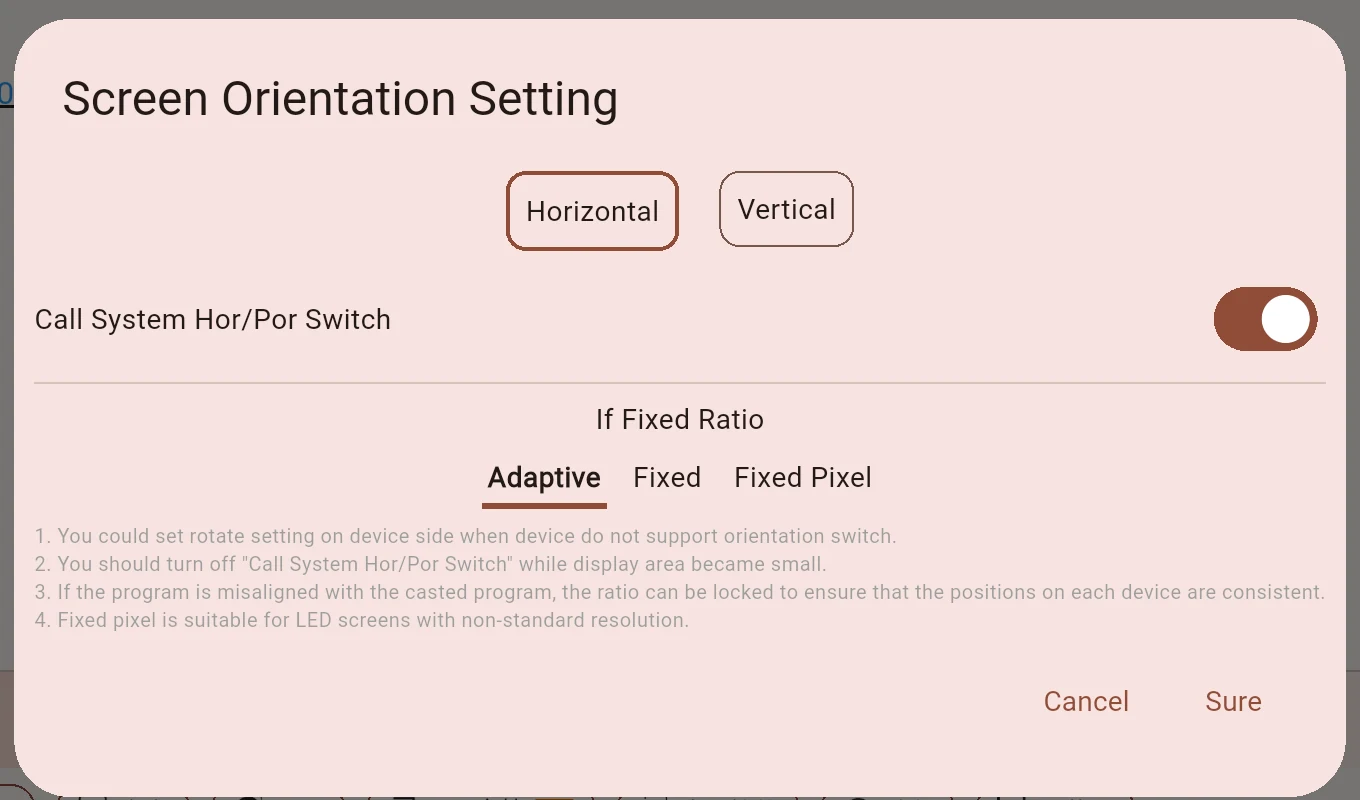
The current dialog is shown below with “Call System Hor/Por Switch” enabled:
| Option | Purpose and suggested use |
|---|---|
| Horizontal / Vertical | Select the program canvas orientation to match the display's physical installation. |
| Call System Hor/Por Switch | Allows playback of this program to request the corresponding Android system orientation. Leave it enabled when switching works correctly. Turn it off if switching shrinks the display area to the center. |
| Adaptive | Lays out content within the available playback area. This is a useful starting point for normal TVs and signage displays. |
| Fixed | Uses a specified aspect ratio, such as 16:9 for landscape or 9:16 for portrait, to keep layouts consistent across devices. Different screen ratios can leave unused space. |
| Fixed Pixel | Uses specified width and height values in pixels, mainly for LED displays with non-standard resolutions. Normal TVs usually do not need this mode. |
Selecting Fixed or Fixed Pixel reveals the corresponding width and height inputs. For more detail, see Program Parameters.
Confirm, then save and update the program
The dialog's Sure button confirms your editing choices. Back in the editor, save the program, or submit it for approval if required by your account.
For a published program, sync or send it again using your usual casting method so the Player receives the new settings. If you use an exported program package, export and update that package on the Player too.
3. Fix a Picture That Shrinks to the Center in Portrait Mode
This is one of the main reasons for the system-switch option: some Android TVs accept a portrait request but fail to provide the full display area.
Follow these steps:
- In Admin, open Orientation/Ratio for the affected program.
- Keep the required program orientation. For a vertically installed TV, keep Vertical, but turn off “Call System Hor/Por Switch”.
- Select Sure, save in the editor, and sync or send the updated program to the Player.
- At the TV, press Back on the remote to open the Player home screen. Under Screen Orientation, select Rotate 90° or Rotate 270°.
- Return to playback and check the full picture and text direction. If it faces the opposite way, switch between 90° and 270°.
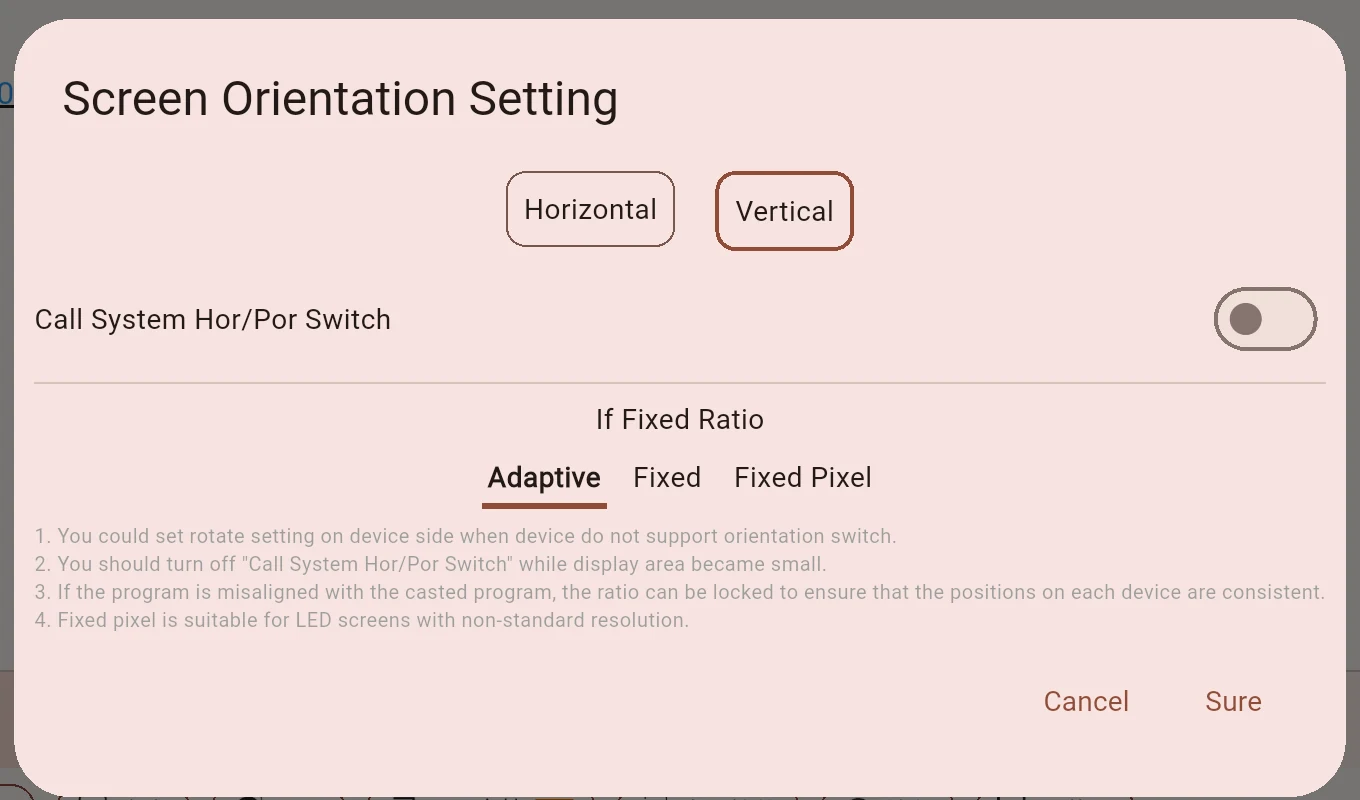
Turning off the system request still allows a portrait program. The system keeps its normal display area, while the Player rotates the playback content.
If the system launcher or other apps also display incorrectly after leaving playback, first restore normal display behavior in the device's own system settings, then check Player playback again.
4. Rotate Playback in the Player
We recommend doing this at the TV with its remote control. Press Back during playback to open the home screen, then find the Screen Orientation card on the right. This control is on the home screen; you do not need to open the More Settings list.
Without a remote, double-click or double-tap the playback screen using the default home-screen gesture. If the gesture or password has been changed, follow the device's current settings.
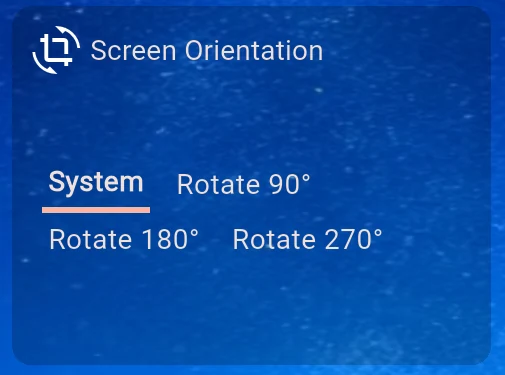
- Remote control: Focus the Screen Orientation card with the arrow keys, then press OK to cycle through the options. The current option is underlined.
- Touch or mouse: Select the required option directly.
- The selection is saved on this Player. Return to the actual program to check the result.
| Option | When to choose it |
|---|---|
| System | Applies no additional playback rotation. Usually keep this when system switching already works, or landscape playback is already correct. |
| Rotate 90° / Rotate 270° | For vertical installations. Try one; if the text is upside down, choose the other. |
| Rotate 180° | Corrects an upside-down picture. |
This Player rotation also helps when playing images and videos directly from a USB drive or folder. For a program package created in Admin, check its program orientation and system-switch option as well.
5. Check the Actual Playback
Check the playing program, rather than only the settings page:
- Text, images and videos face the viewer correctly.
- Required content is fully visible, without a small centered display area caused by system switching.
- Sub-screens and media appear in their intended layout positions.
If unused space comes from a difference between the program and screen aspect ratios, review Adaptive or Fixed. See Program Parameters for details.