
主题
Player Settings
Scope: Android Player app settings; options vary by OS, edition and device capabilities. Documentation checked: 2026-10-24.
Player settings control startup, language, playback and device maintenance. We recommend operating in front of the TV with its remote control. If playback works well, leave most advanced options at their defaults.
These screenshots show the current Android Player. Available options vary by platform, version and device capabilities. Red boxes highlight important areas; click an image to enlarge it.
1. Open settings
- During playback, press Back on the TV remote to open the Player home screen.
- Use the arrow keys to select More Settings, then press OK.
- Use Up and Down to browse. Press OK to toggle a switch. On a row with several choices, OK cycles through them; the underline marks the selected value.
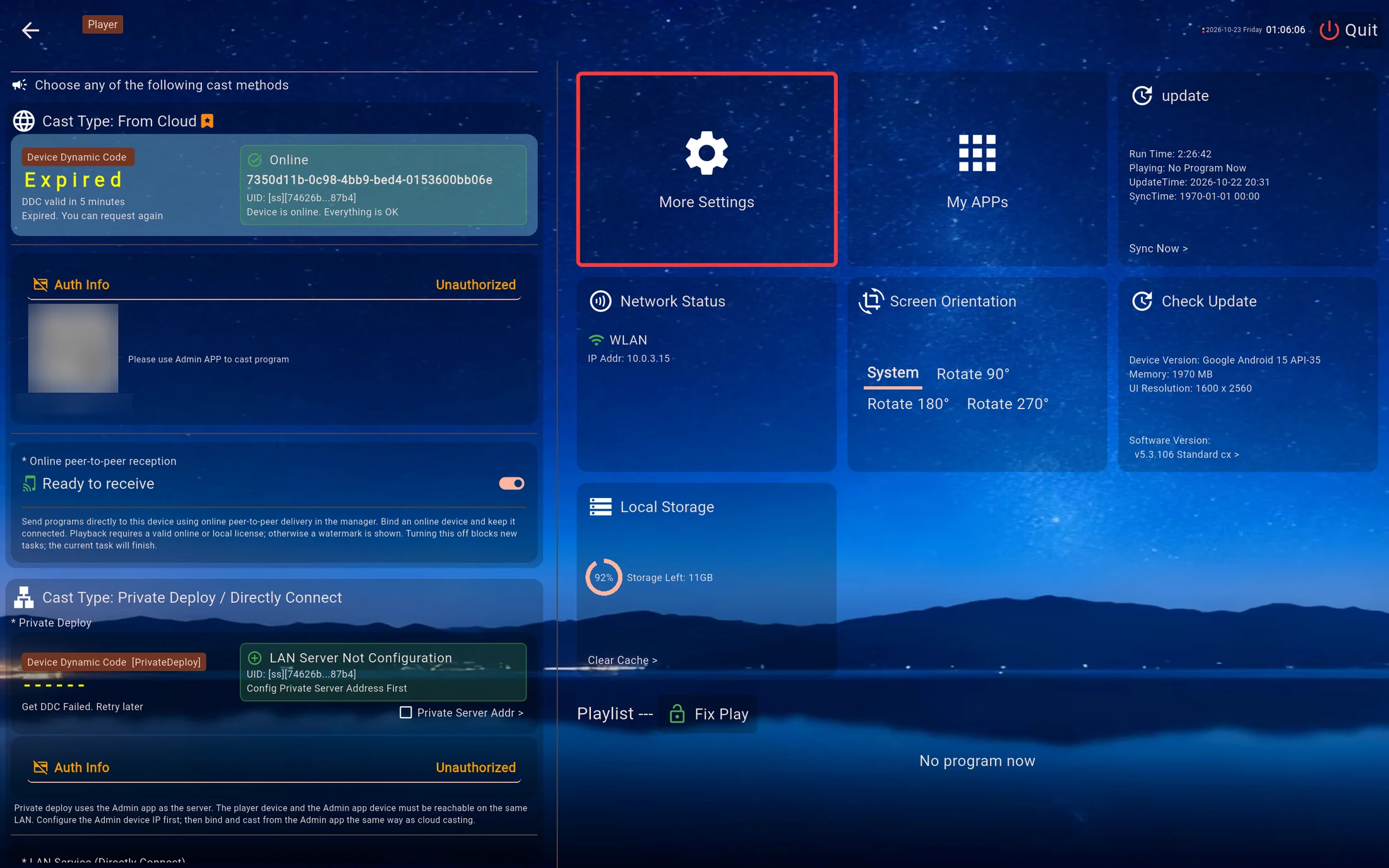
Without a remote, double-tap the playback screen by default. Use your finger on a touchscreen, or connect a mouse and double-click. If “Way Home” has been changed, use the configured gesture. Enter the password if one is set.
With touch or a mouse, tap an option directly and scroll down for more settings. Changes are saved when selected; there is no separate Save button. If saving fails, check which value remains selected.
Some controls are on the home screen
Local Check Update, Screen Orientation and Clear Cache controls are in the cards on the right of the home screen, rather than in the local settings list. See Updating the Player and Screen Orientation.
2. Common settings
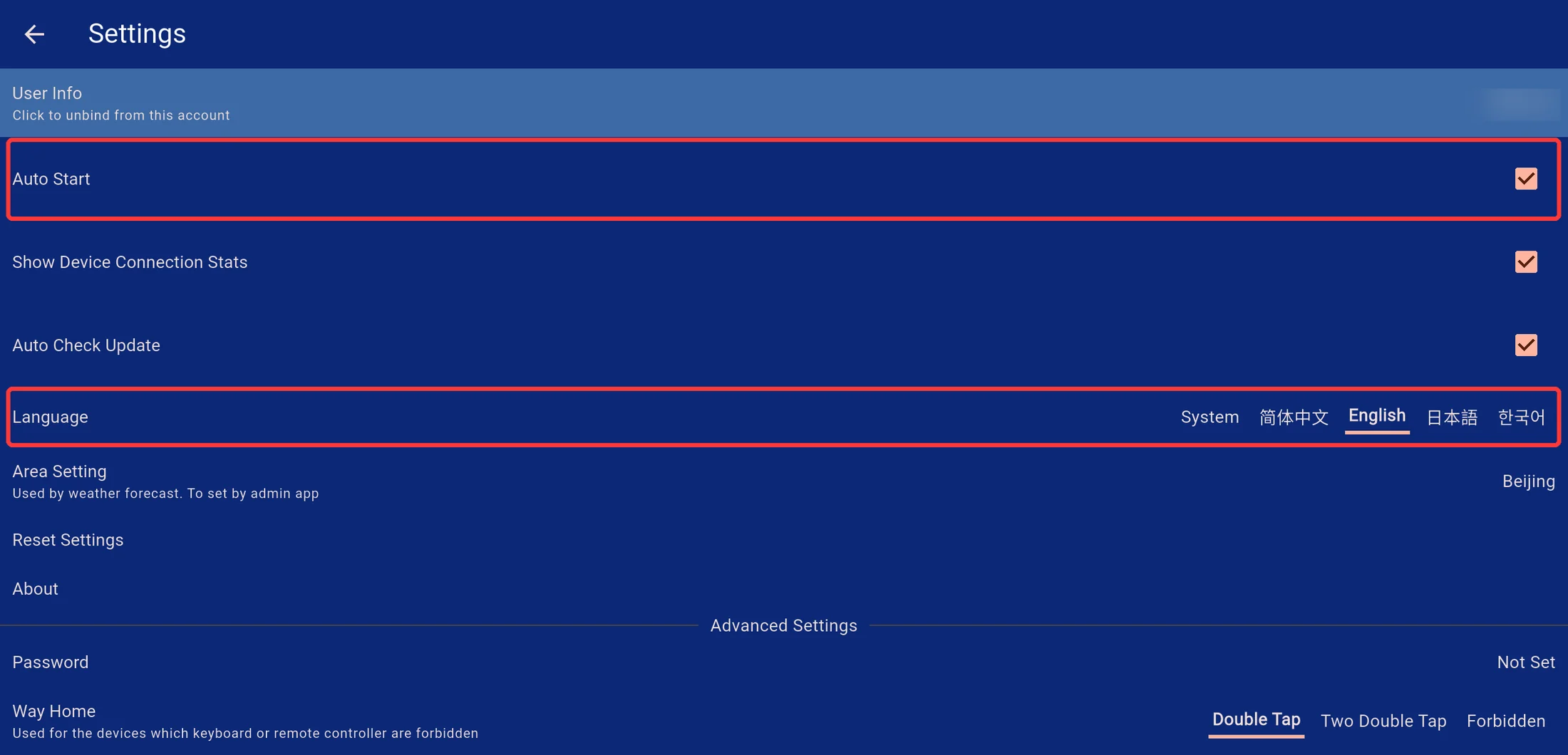
| Setting | Purpose and guidance |
|---|---|
| Bound user | Shows the linked account. Select it to request unbinding only when changing the managing account. The device must be bound again for that account to continue managing it. |
| Auto-start | Enable it to start playback after boot. Some systems also require selecting the default launcher or allowing background activity; see Auto-start Diagnostics below. |
| Connection status display | Controls connection error messages during playback. Hiding them does not fix the network or disable connectivity. |
| Automatically check for updates | Recommended. Checks for new Player software. Installation may still require someone at the TV to confirm an Android installer window. |
| Language | Changes the Player interface language. System follows the operating system. This does not change the Admin app language. |
| Area | Supplies location information for features such as weather. Configure it through remote settings in the Admin app. |
| About | Opens the user agreement and privacy policy. |
Automatic update checking is for the Player software. To receive new program content, use update → Sync Now on the home screen.
3. Playback and performance
Scroll down to advanced settings. Change an option only when troubleshooting a related issue, and change one at a time. Return to playback to check the result.
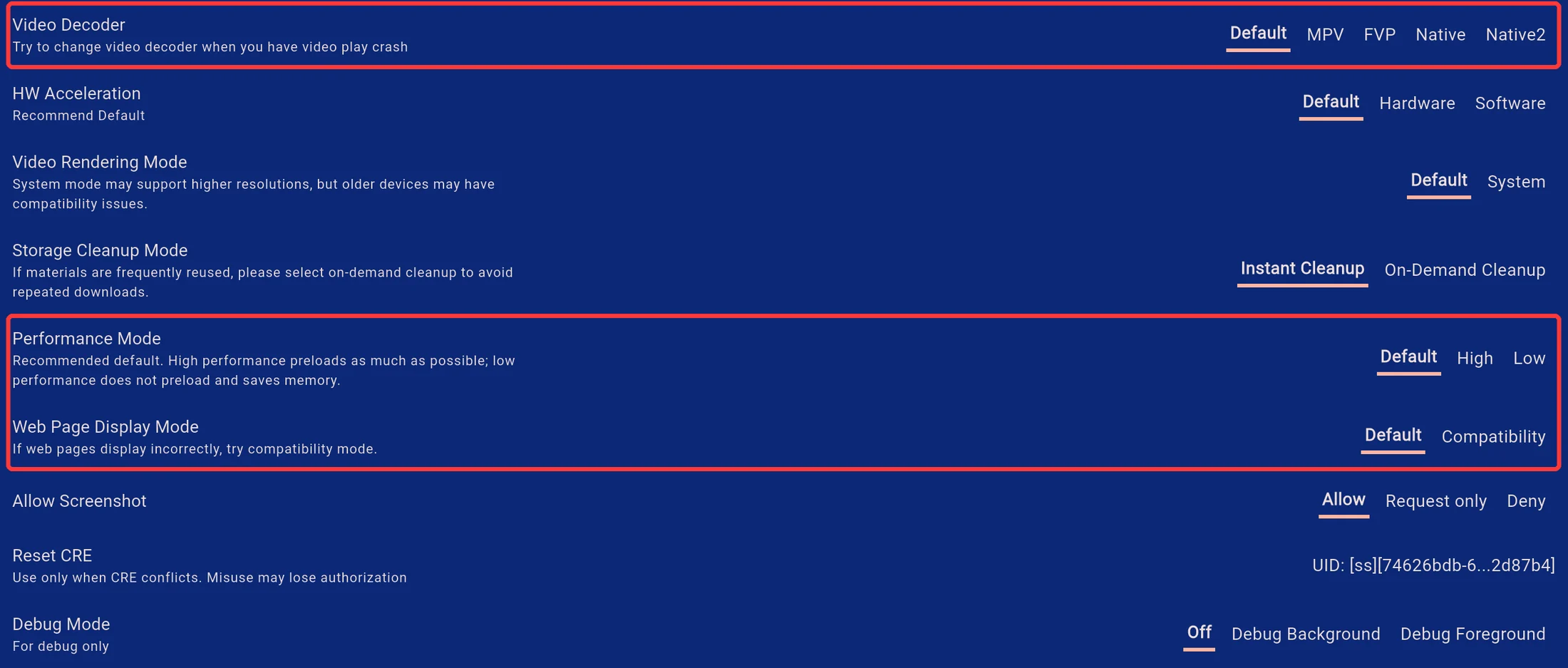
| Setting | When to use it |
|---|---|
| Video decoder | Try another decoder for black video, missing pictures or stuttering. On Android, Native uses MediaPlayer and Native2 uses ExoPlayer. These suit a single full-screen video; prefer the default for mixed layouts or multiple sub-screens. Available decoders vary by platform. |
| Video hardware acceleration | Leave at the default initially. Hardware and software decoding results depend on the device and decoder; test with your actual videos after changing it. |
| Video rendering | Keep the default initially. System rendering may help with some high-resolution videos, but can cause compatibility issues on older devices. Restore the default if it makes playback worse. |
| Storage cleanup mode | Instant cleanup removes unused program media promptly. On-demand cleanup keeps reusable media until space needs to be released. This is separate from the manual Clear Cache action. |
| Performance mode | Default suits general use. High performance uses more preloading and memory. On low-memory devices playing many images, try Low performance to reduce preloading. |
| Web display mode | Try Compatibility if web content displays incorrectly. This setting is separate from the Standard and Compatibility editions of the Player installer. |
Performance mode cannot fix every freeze. If problems continue, record the device model, software version, program content and time of the issue for support.
Access and screenshots
| Setting | Purpose |
|---|---|
| Password | Protects access to management actions such as opening the home screen. Useful in shops and public spaces. Keep the password safe. |
| Way Home | Controls the touch or mouse gesture: double-tap, two double-taps, or disabled. Mainly intended for operation without a remote. |
| Screenshot permission | Allow permits screenshots. Request-only permits explicitly requested screenshots while restricting periodic captures. Deny blocks screenshots. Check this when remote screen viewing fails. |
| Debug mode | Normally off. Use it when support requests diagnostics. If diagnostic text appears over playback, check this setting. |
Reset and cleanup
- Reset configuration restores Player settings to their defaults. Recheck password, startup and playback options afterwards.
- Reset CRE resets the device key and affects its identity. Misuse can cause license loss. Use it only when support has identified a device identity conflict; it is not needed for routine maintenance.
- Clear Cache is on the home screen under Local Storage. Clearing all program cache requires downloading it again, so avoid doing this while relying on offline playback.
4. USB, folder and system settings
Scroll further down for USB/folder playback options and Android system shortcuts.
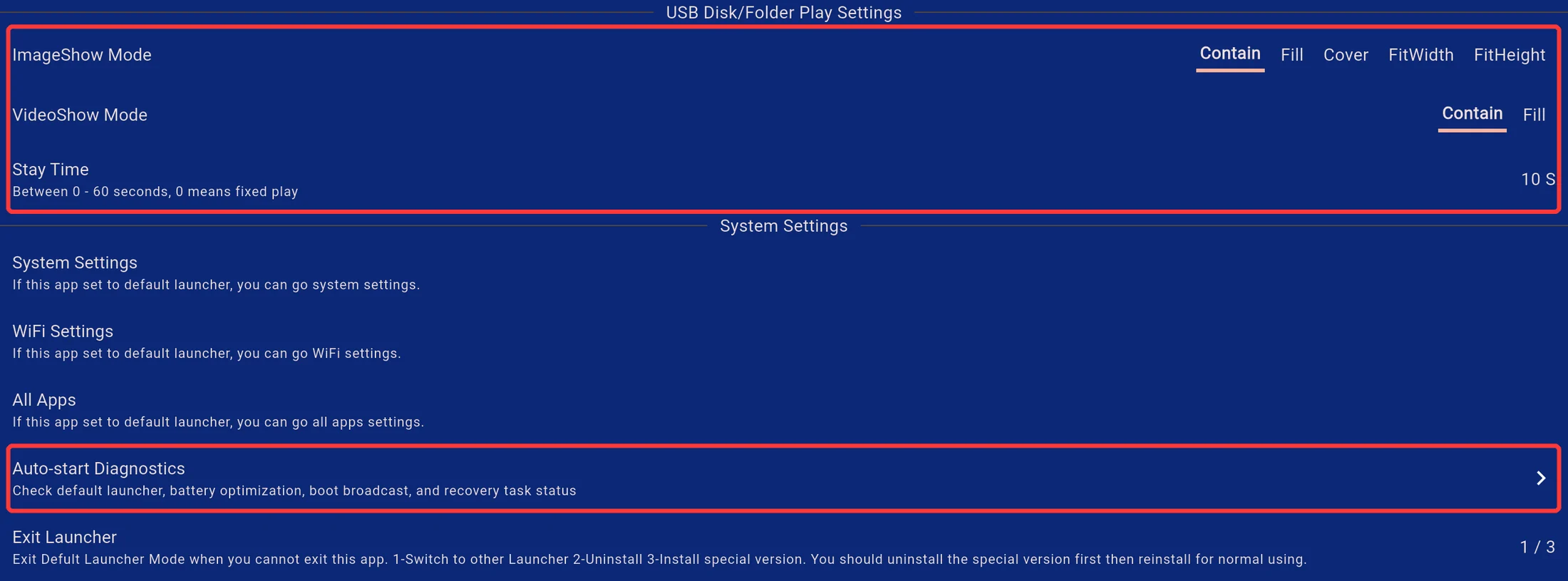
USB and folder playback
These options apply when scanning media directly from a USB drive or folder. For a prepared program, adjust media properties in the Admin program editor.
| Setting | Purpose |
|---|---|
| Image display mode | Contain keeps the whole image and may leave borders. Fill stretches it and may distort it. Cover fills the area and crops the excess. Width-fit and height-fit options are also available. |
| Video display mode | Choose between showing the whole picture and stretching it to fill the area. |
| Stay Time | Sets the duration for items such as images; the default is 10 seconds. A value of 0 selects fixed playback. Use a value above 0 for automatic rotation. Videos play for their own duration. |
Choose the USB insertion behavior in the USB Disk section on the left of the home screen. See USB Casting and Folder Casting.
Android system shortcuts
System Settings, WiFi Settings and All Apps open the device's own settings or app list. Configure wireless networks in the system WiFi screen.
If the Player is the default launcher, pressing Home may return to it. To change this, use system settings to select another home app first. Exit Launcher can lead to choosing a launcher, uninstalling, or installing another edition. Read the actual prompt and avoid repeatedly trying the button; contact your device supplier if unsure.
5. Auto-start Diagnostics
If the Player does not open after boot, first check that Auto-start is enabled, then open Auto-start Diagnostics near the bottom of settings.
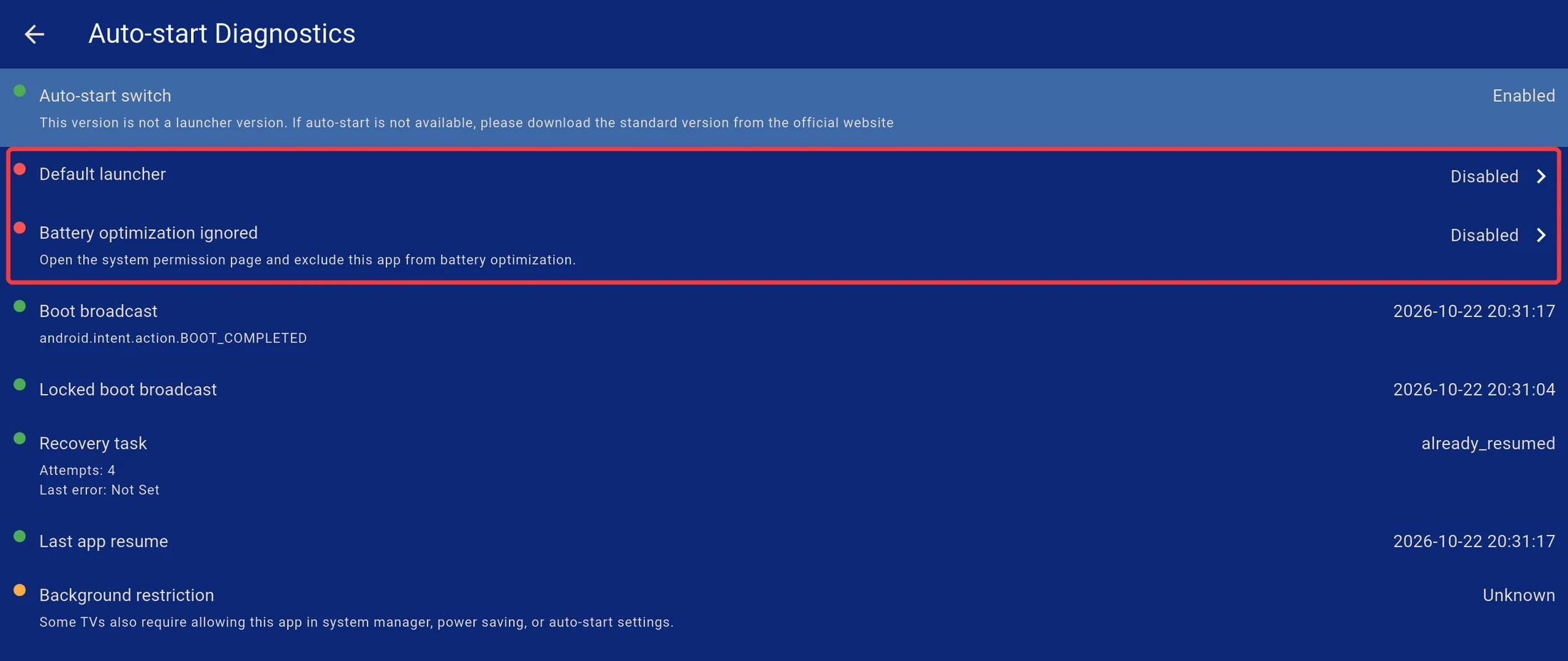
Check these items:
- Default launcher: whether the Player is selected as the home app.
- Battery optimization: whether Android allows the Player to keep running. Follow the system settings shortcut when needed.
- Boot broadcasts and recovery records: whether a boot event was received and recovery ran. Share these records with support when troubleshooting.
- Background restrictions: some TVs also need permission in their device manager, power-saving or auto-start settings.
The screenshot shows the emulator's status at capture time, rather than a configuration to copy. Restrictions vary by manufacturer; enabling the switch does not guarantee that the system permits auto-start. See Auto-start Guide.
6. Remote settings from Admin (optional)
Operating at the TV is recommended. If the device is elsewhere and remote operation is available, open:
In Home, select online device management, then follow My Device → select the device → Device Status → Remote/Settings/Screenshot → Remote Settings.

Keep the Player online and use an account with permission to manage it. Online remote operations also require the license conditions shown in the app. The example device does not have remote operation enabled, so only the entry is shown here.
Remote settings include Screen Orientation, Check Update and Clear Cache. Local system settings and auto-start diagnostics still require operation at the TV. Check the execution result after sending an action. Android software installation may still need someone at the TV to confirm it.