
主题
Child-Screen Groups
Child-screen groups are used to place multiple complete playback layouts inside one program. They are mainly used to assign different content to devices in Multi-Screen Playback.
Ordinary single-screen programs, Same-Screen Playback and automatic Video Wall normally use Default without named screen groups. Use child-screen groups only when different devices need to play different visuals from the same program.
What Problem It Solves
Take a three-screen layout as an example. There are three devices on site: left, center, and right. You want them to form one large visual, while each device plays only its own part.
In this case, you do not need to create three programs, and you do not need program groups or program labels.
The correct setup is:
- Set the left device label to
Left - Set the center device label to
Center - Set the right device label to
Right - Create three child-screen groups inside one program:
Left,Center, andRight
When the Player runs, it selects the child-screen group with the same name as its own device label.
Matching Rule
The key rule is:
Device label = Child-screen group name
For example:
- A device labeled
Leftplays theLeftchild-screen group - A device labeled
Rightplays theRightchild-screen group - Child screens without a group name belong to the default group
Group names are trimmed automatically. To make on-site troubleshooting easier, use simple, stable, and recognizable names.
Step 1: Set Device Labels First
Before editing the program, set labels in each device’s details under My Device. Use an ordinary device group with Video Wall turned off.
Name the labels by physical position, such as:
Left/Center/RightTop/Bottom1/2/3
Do this first because you will use the same names again when creating child-screen groups.
Step 2: Find the Screen Group Selector
Open the program editor. At the top of the ChildScreens area, you can find the Screen Group selector.
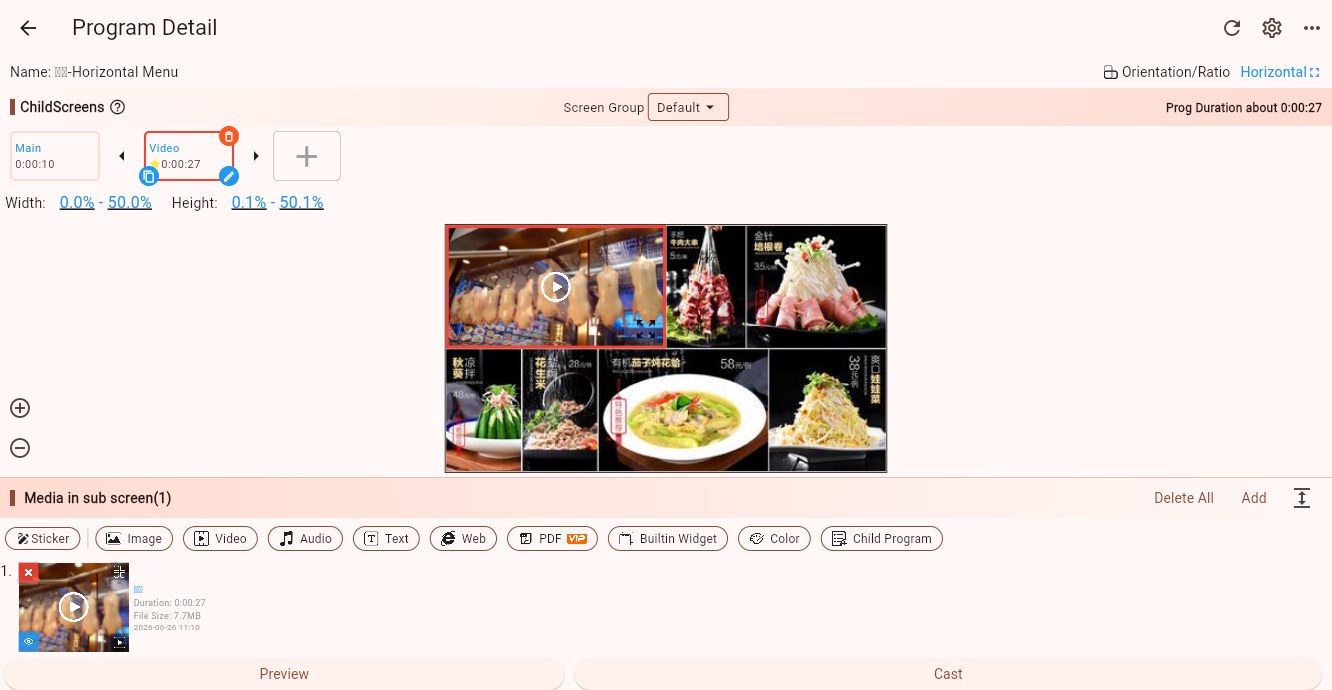
By default, all child screens in a program belong to the default group. For ordinary programs, keep the default group.
Step 3: Create a Child-Screen Group
Click the Screen Group selector to open the menu.
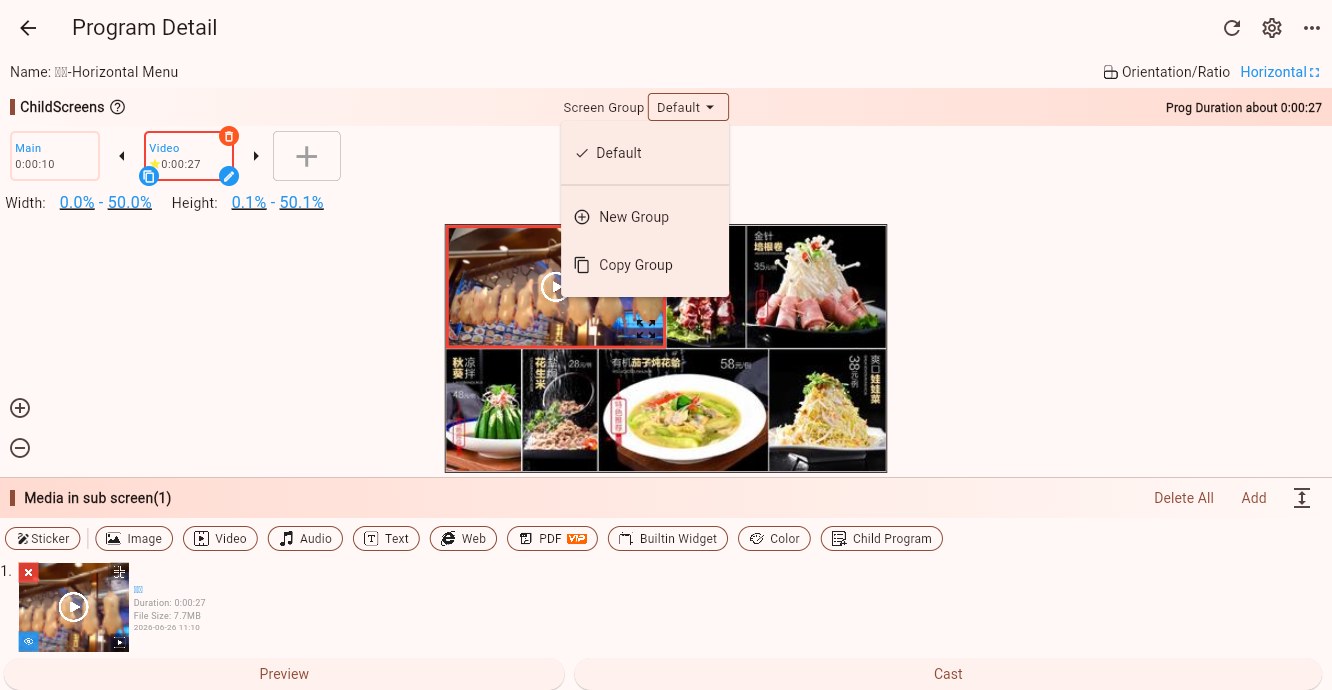
Choose "Create Group". The first time you create a child-screen group, the system explains what screen groups are for. This workflow assigns content by device label; keep automatic Video Wall mode off in the device group.
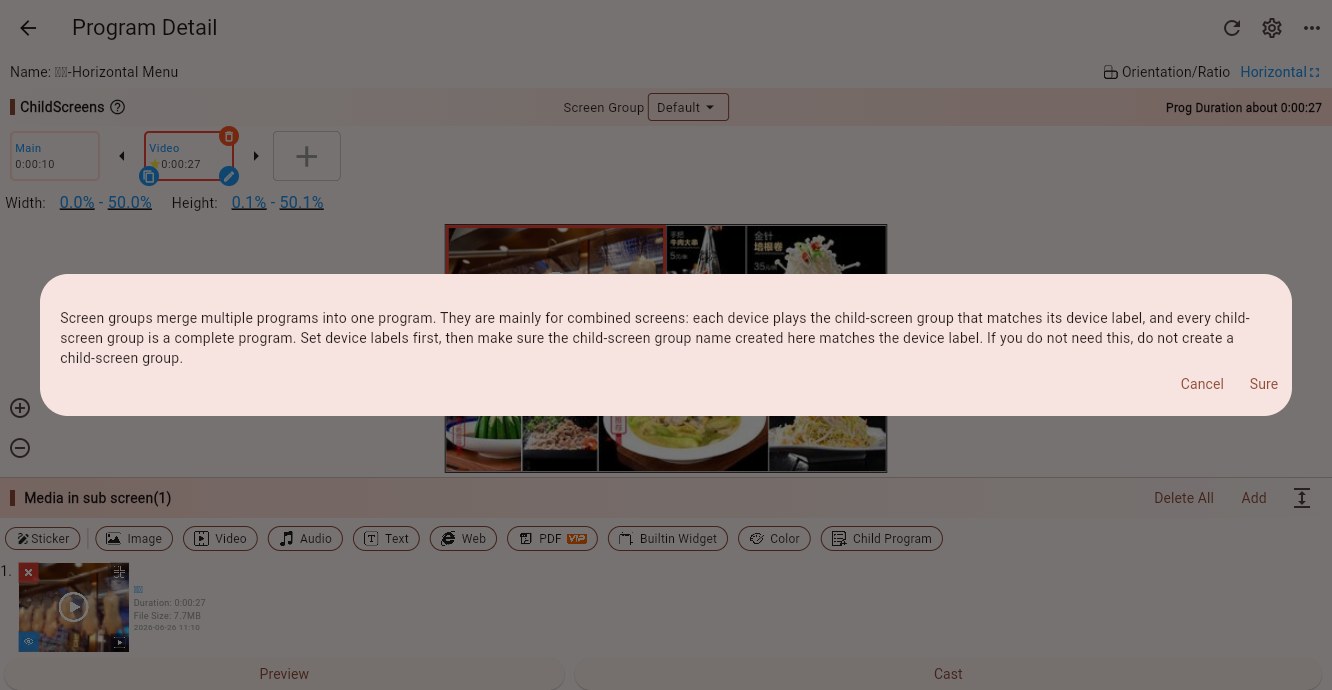
After confirming, enter the group name. The recommended name is the matching device label, such as Left.
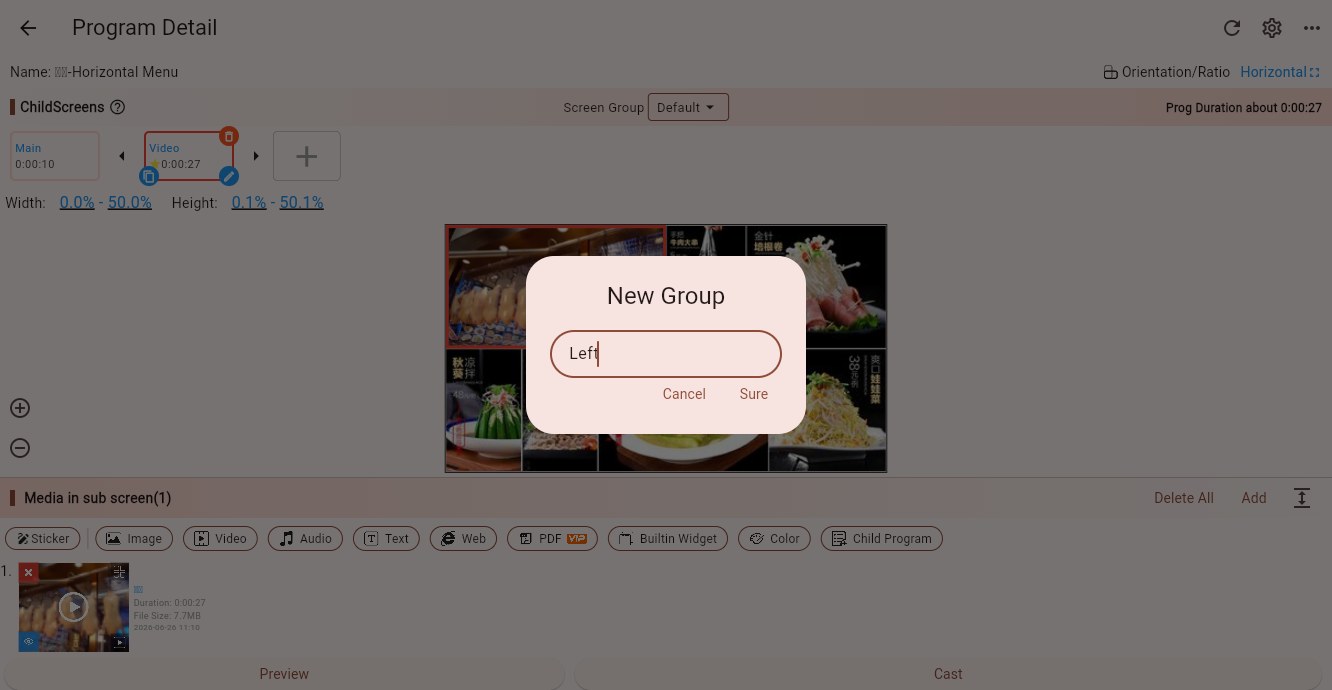
After the group is created, the editor automatically creates a full-screen child screen in that group.
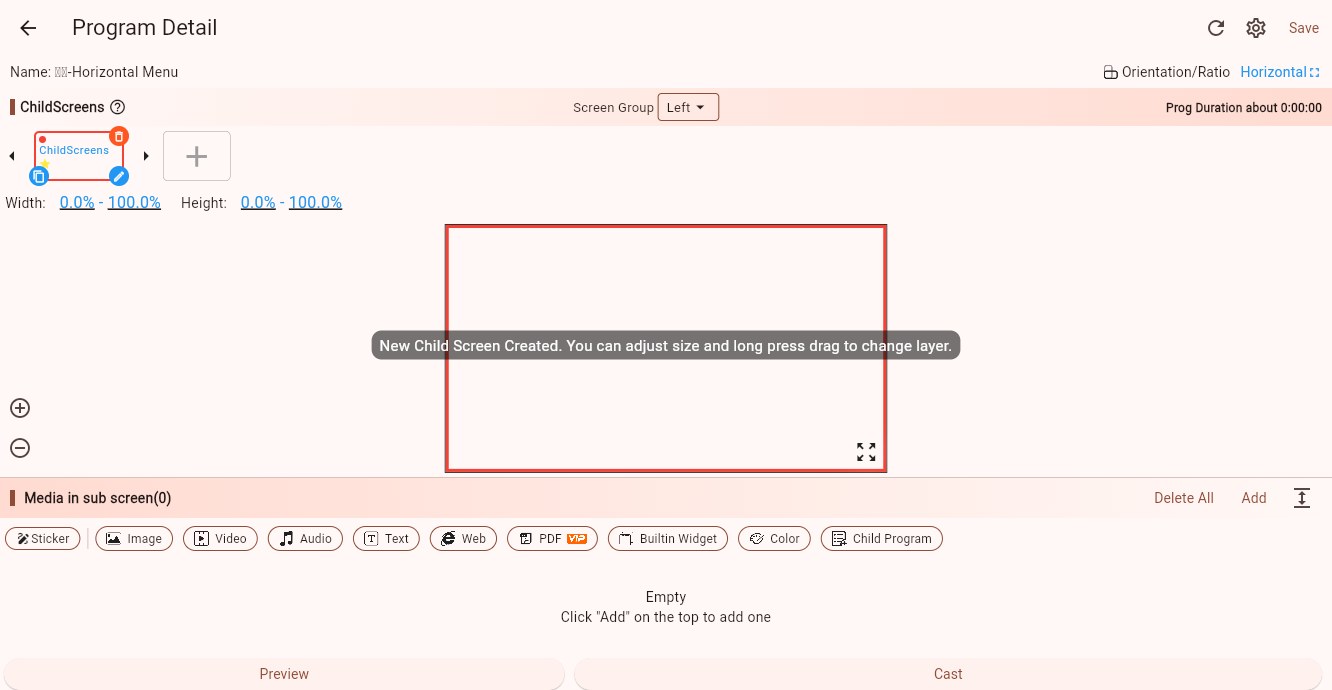
You can add the media that this device should play into that child screen. For multi-screen playback, you usually split the original large image or video first, then add the matching part into the matching group.
Step 4: Edit Each Group Separately
Open the Screen Group selector again. The menu now shows the group you created.
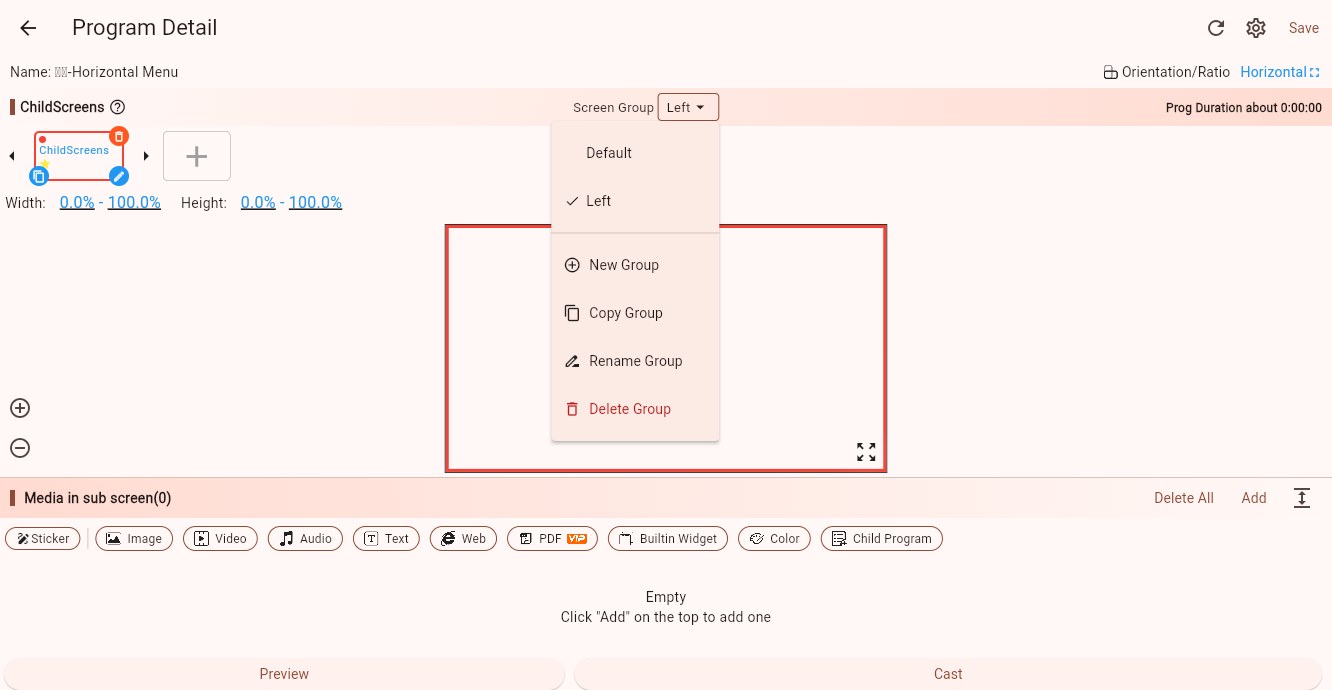
You can continue creating other groups, such as Center and Right. After switching to a group, the page shows and edits only the child screens and media in that group.
Each group is edited independently:
- Media added in the
Leftgroup does not appear in theRightgroup - Adjusting child-screen size in the
Centergroup does not affect the default group - When a group is selected, newly added child screens belong to the current group
Group Management
The Screen Group menu provides these actions:
- Create Group: creates a new child-screen group. If the group has no child screen yet, a full-screen child screen is created automatically.
- Copy Group: copies the child screens and related media from the current group into a new group name.
- Rename Group: renames the current group. After renaming, make sure the device label uses the same new name.
- Delete Group: deletes all child screens and media in the current group.
Deleting a group deletes the content inside that group. Confirm that the child screens and media are no longer needed before deleting.
Save and Publish
After all child-screen groups are ready, save the program.
Then publish this program to an ordinary device group with Video Wall turned off. This is the normal single-program publish flow; program-group publishing is not required. During playback, each device selects the child-screen group that matches its own device label.
If you are setting up multi-screen playback, continue with Multi-Screen Playback.
Notes
- Ordinary single-screen programs usually only need the default group.
- A blank group name means the default group.
- Group names cannot be duplicated.
- Group names are trimmed automatically.
- Child-screen group names should match device labels.
- Copying a group copies the child screens and related media in that group.
- Deleting a child-screen group deletes all child screens and media in that group.
- If a device label does not match any child-screen group name, playback may be incomplete or may not show the expected visual.