
主题
Same-Screen Playback
Play the same complete program on multiple TVs at the same time, such as matching displays across a store or venue.
Choose the right approach

| Desired result | Choose | Program setup | Video Wall switch in the device group |
|---|---|---|---|
| Every TV shows the same complete picture | Same-Screen | An ordinary program using the Default screen group | Off |
| Each TV has its own content, including manually split parts of a panorama | Multi-Screen | One program with named screen groups that match device labels | Off |
| TVs form one large picture, with each showing its assigned area automatically | Video Wall | Whole media in the Default screen group; no pre-splitting | On; set rows/columns and use numeric device labels |
Same-Screen repeats a picture; Multi-Screen assigns different content; Video Wall divides one whole picture automatically. All three can use Sync Playback to align their timelines. That setting controls timing, not which part of the picture each screen displays.
Before you begin
Make sure all Players are bound, can receive programs and have the correct system time. For a larger set of devices, put them in one device group so you can cast to them together.
Step 1: Prepare an ordinary program
Create a program normally and put its content in the Default screen group. You do not need to split media or create different screen groups for different devices.
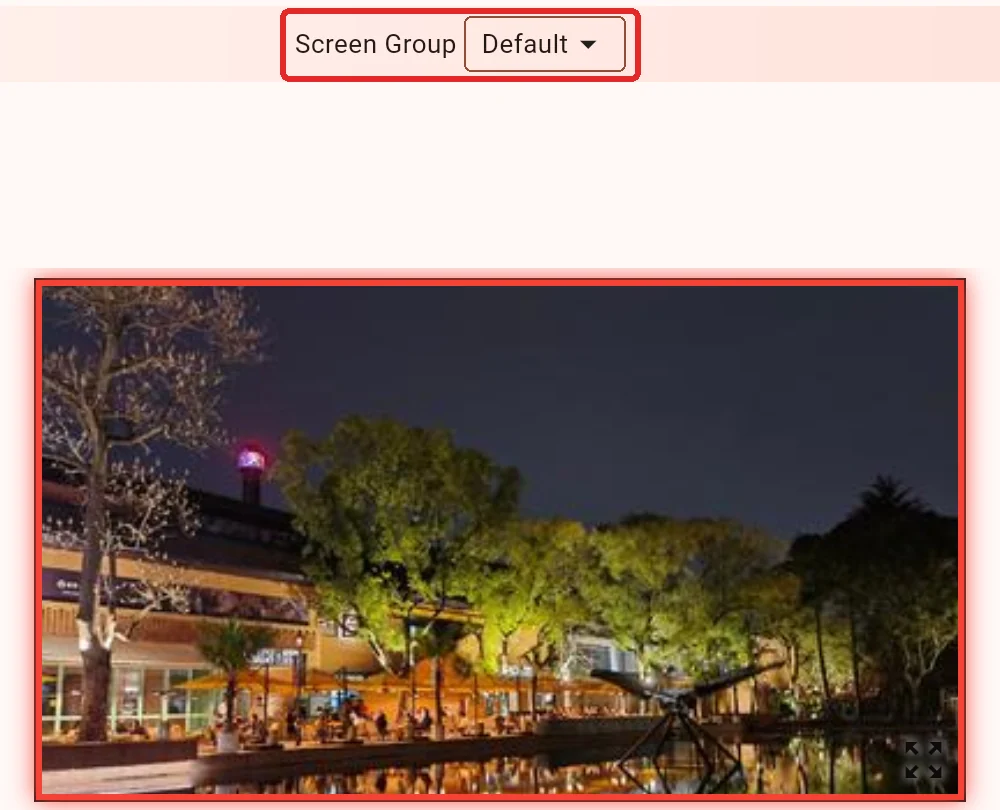
For example, to play the same complete promotional video on three TVs at an entrance, create one ordinary video program.
Step 2: Choose the devices
In My Device, create or edit an ordinary device group, leave Video Wall off, and add the devices to it.
Save the program, click Cast, choose To Device Group, then select that group. Same-Screen also supports selecting multiple devices directly.
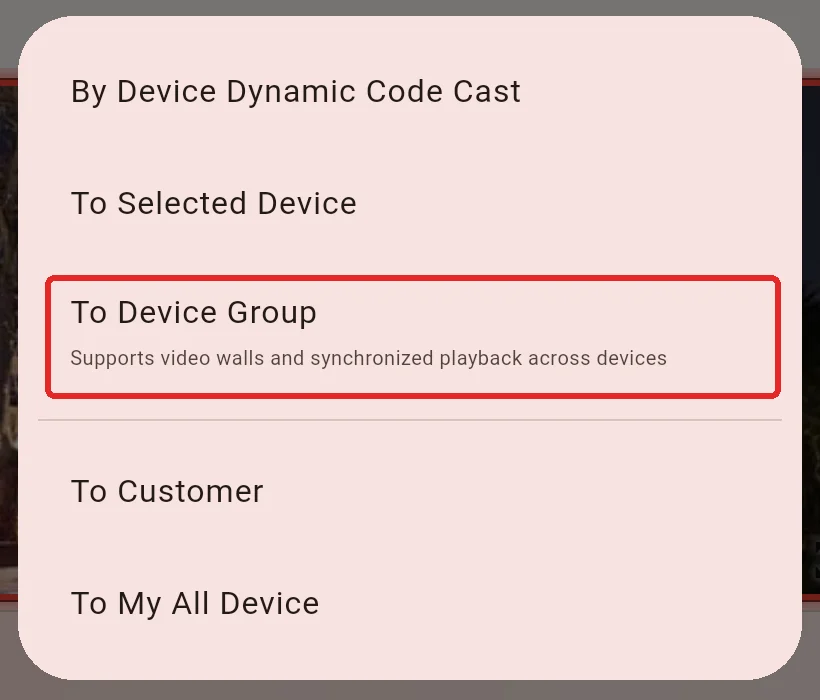
Step 3: Select Sync Playback
In the cast dialog, click Start/End Time/Priority/Playback Mode.
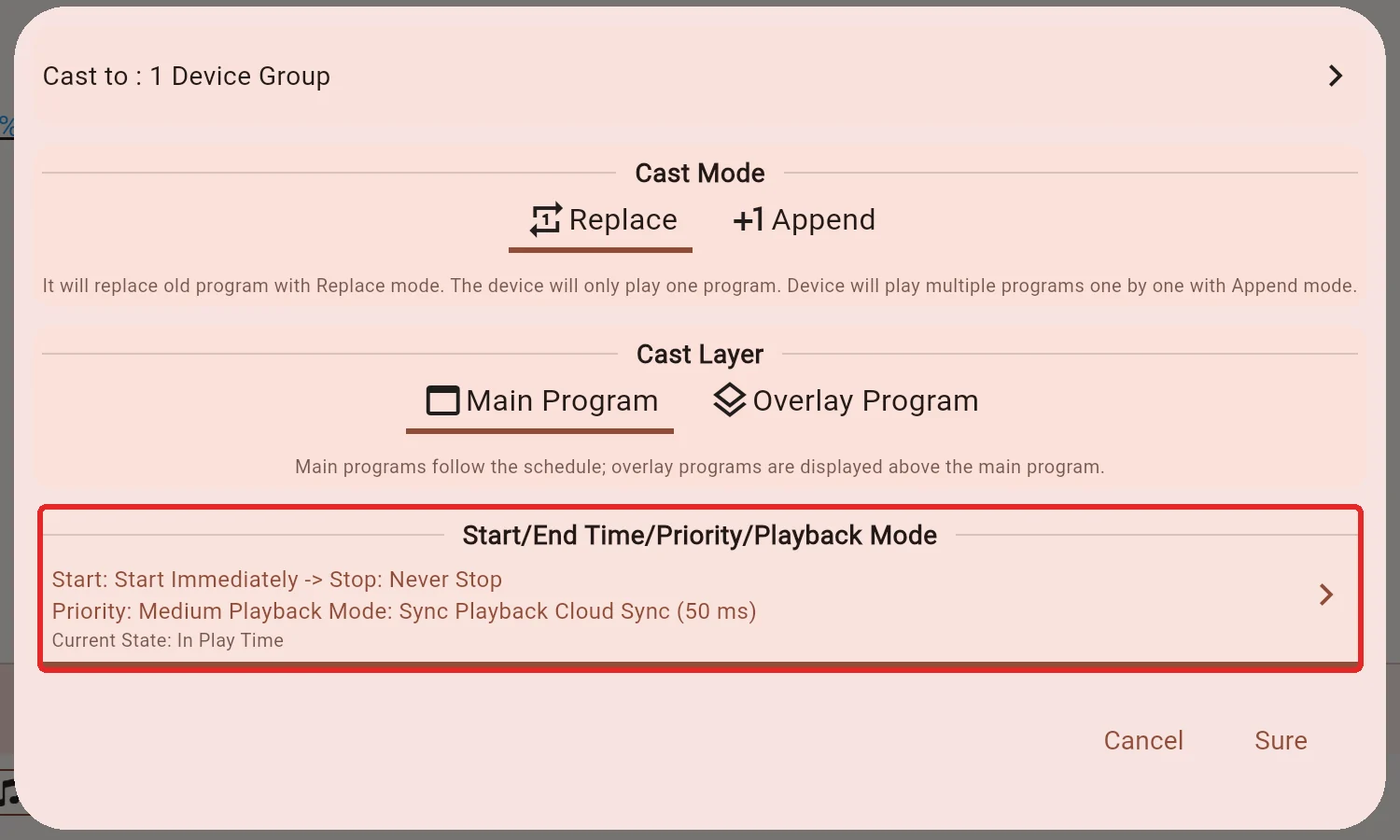
Choose Sync Playback. When all devices can reach the internet, online synchronization (shown as Cloud Sync) is recommended. For LAN Sync, put the devices on the same LAN; use the same channel within a sync group and different channels for separate groups.
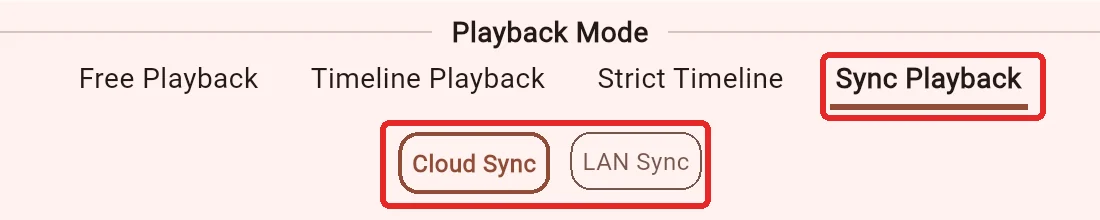
Keep the default sync accuracy for an initial trial. Check the start/end times, return to the cast dialog and confirm. Wait for every device to finish downloading.
Check the result
Every TV should show the same complete picture, with media changes occurring at approximately the same time. Initial download speeds can differ, so assess synchronization after all devices have received the program.
- Each TV shows only a corner: check whether Video Wall was enabled accidentally. Turn it off, save and cast again.
- Different TVs show different content: check for named screen groups in the program. Use only Default for a straightforward Same-Screen setup.
- Content matches but timing differs: check Playback Mode, system time, sync time source and any higher-priority programs.
Device performance, decoding speed and clock synchronization affect the result. Sync Playback does not provide hardware frame locking.