
主题
Player Overview
Scope: Android Player; available entries can differ between Standard and Compatibility. Documentation checked: 2026-10-24.
The Player runs on the TV, signage display or set-top box that shows your content. The usual workflow is create a program in Admin → cast it to the Player → receive and play it. Once playback is running normally, you do not need to keep the home screen open.
Open the home screen
On a TV, press Back on the remote control during playback. Use the arrow keys to select a card, then press OK.
Without a remote, double-tap the playback screen by default. Use a finger on a touchscreen, or connect a mouse and double-click. If “Way Home” has been changed, use the configured gesture. Enter the password if required. Use the top-left back button to return to playback when finished.
Find your way around
This is the current Android Player home screen. Red boxes highlight settings, program synchronization, software updates and the playlist. Click to enlarge. QR codes and related details have been blurred; use the information on your own device.
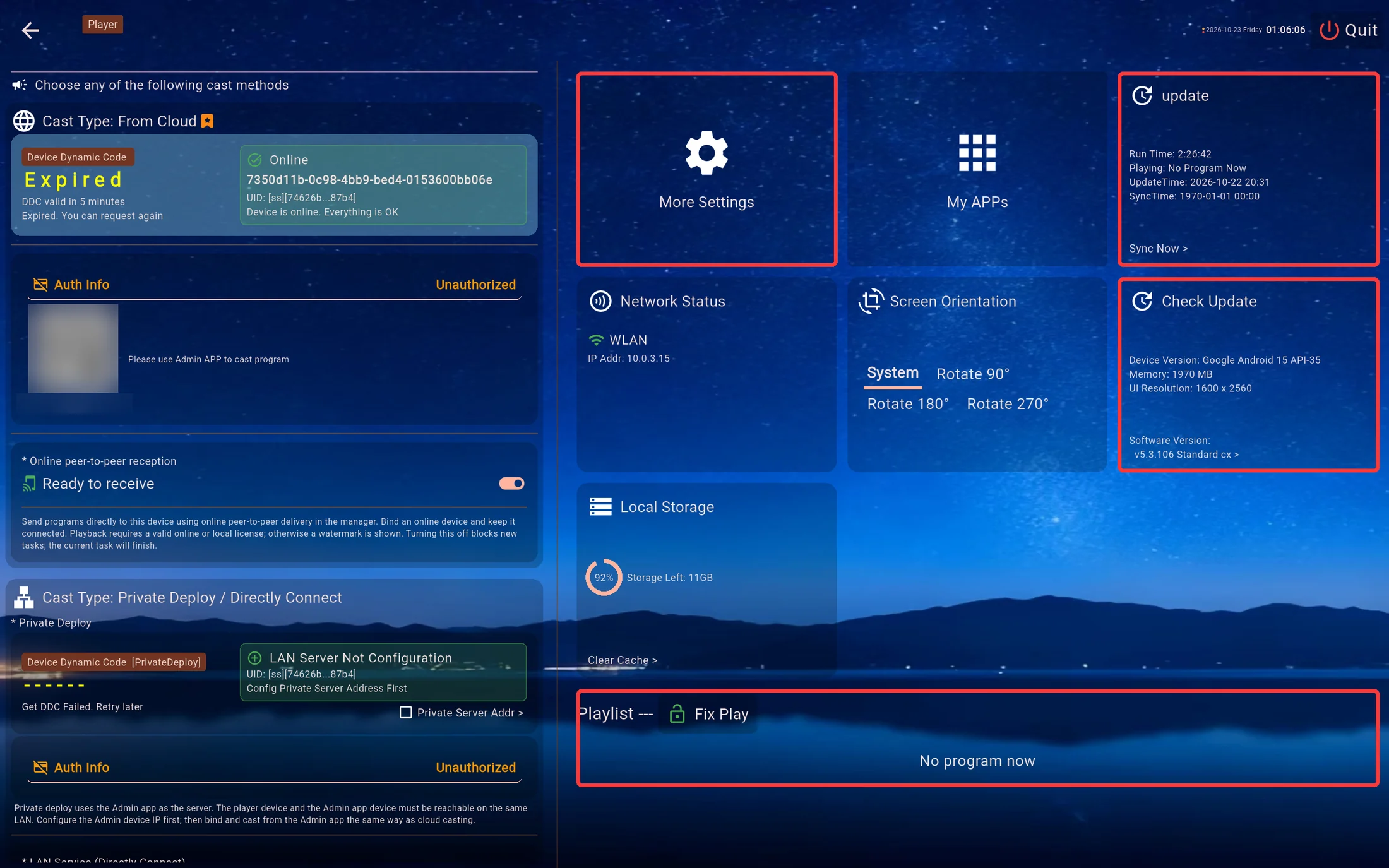
The example device has not received a program, so its playlist says “No program now”. This is not an error. Controls may vary slightly by platform and version.
| Area | What it does |
|---|---|
| Online casting, on the left | Shows connection status and the device dynamic code. Use the code in this section for initial online binding; request a new one when it expires. See Online Casting (Recommended). |
| More Settings | Configure auto-start, language, password and playback performance. See Player Settings. |
| Program update | Shows the current program, update time and synchronization time. Sync Now requests program synchronization. |
| Network Status | Shows the connection type and IP address. Use system network settings to change WiFi. |
| Screen Orientation | Changes screen rotation. See Screen Orientation. |
| Check Update | Shows device information and the Player software version, and checks for a new installer. See Updating the Player. |
| Local Storage | Shows free space and opens Clear Cache. Clearing all program cache requires downloading it again; avoid doing this during offline use. |
| Playlist | Shows received programs and playback arrangements. Fix Play locks the current program; check whether it affects the automatic switching you expect. |
| My Apps | Opens other apps on the device. |
Program updates and software updates are different
Program update receives content such as images, videos and schedules; it does not upgrade the app. Check Update downloads and installs a new Player version. Android installation may require confirmation at the TV. If support asks you to update the Player, follow Updating the Player.
Other casting methods
Scroll down within the left-hand panel to find LAN direct connection, USB and folder controls. Choose the method you need; you do not need to enable every service.
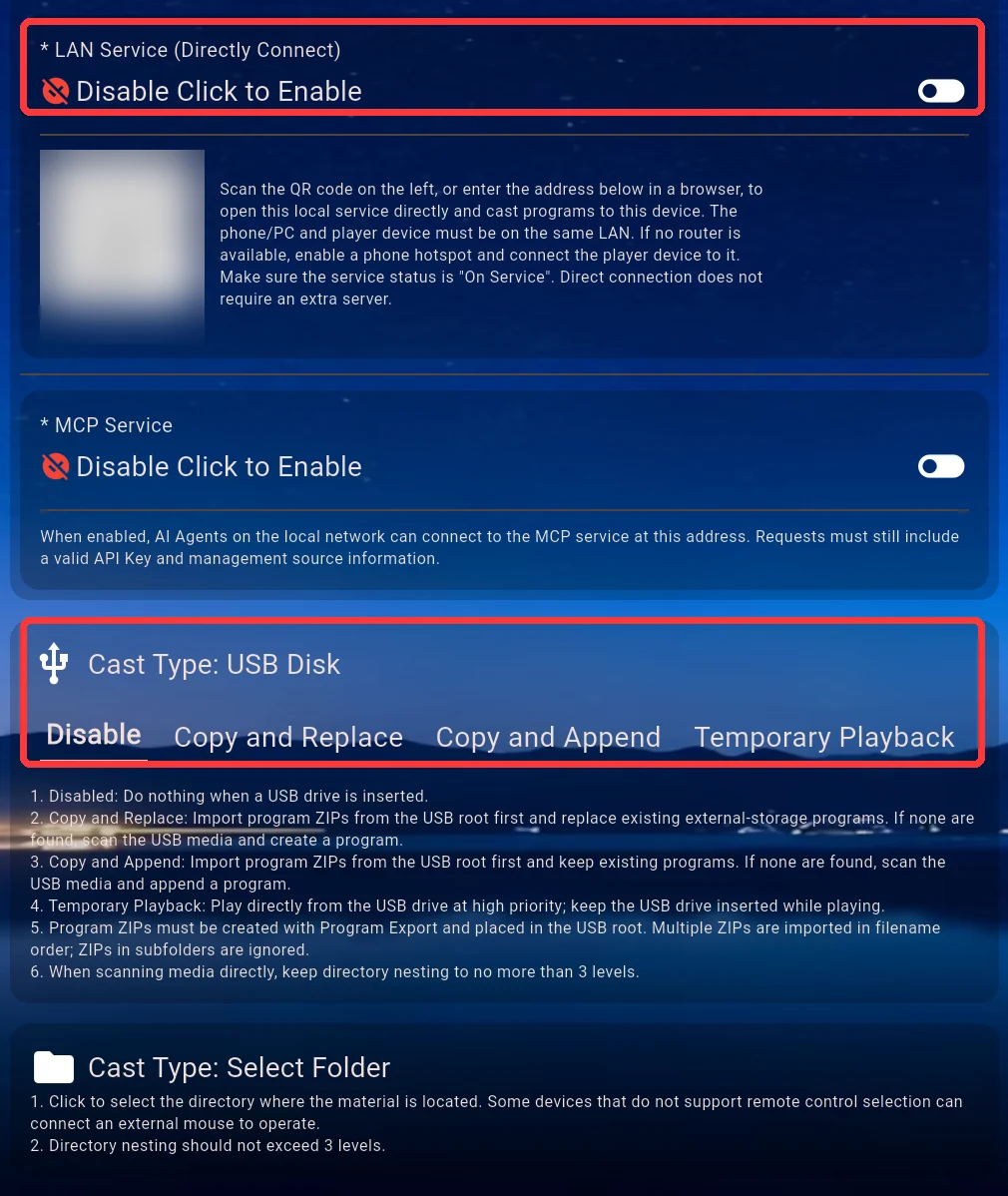
| Method | When to use it |
|---|---|
| Online Casting (Recommended) | Manage devices with an online account for routine remote publishing. See Online Casting. |
| LAN Direct Connection | Put the phone/computer and Player on the same LAN, enable the Player's local service, then visit its address. See LAN Direct Connection. |
| Private Deployment | Use an Admin/server on the local network and configure its server address first. This differs from the Player-hosted LAN direct service. See Private Deployment. |
| USB Casting | Insert a drive and choose copy-and-replace, copy-and-append or temporary playback. See USB Casting. |
| Folder Casting | Select a media folder accessible to the device. See Folder Casting. |
The Standard edition also supports Online Peer-to-Peer Casting, with its reception switch below the online casting area. For AI-assisted operation, see AI Assistant Setup. Ordinary playback does not require enabling the MCP service.
Routine checks and next steps
- New content has not arrived: check that the device is online, inspect the program synchronization information, then try Sync Now if needed. For a new device, also check that Admin has bound it and cast a program to it.
- Wrong screen direction: adjust Screen Orientation on the home screen. See Screen Orientation.
- No automatic playback after boot: check Auto-start and open its diagnostics in Player Settings.
- Need an update or version number: look at Software Version in Check Update, including its Standard or Compatibility edition label.
- Using several screens: see Same-Screen Playback for identical content, Multi-Screen Playback for different content on each TV, or Video Wall to divide one whole picture across TVs automatically.